Connect an AI coding tool
Warning
We're currently releasing our new experience to a limited number of customers. You might not be able to access this experience yet.
You can provide your AI coding tool with access to your project and install the Agent Toolkit, which bundles the AWS MCP server configuration and a curated set of agent skills. This lets your AI coding tool create and manage AWS resources on your behalf.
Considerations for connecting your coding tool to your project
You can connect AI coding tools to a project you own or a project that has been shared with you.
When an AI coding tool or local agent creates AWS resources, you are still responsible for them. This includes the proper security of your resources as defined by the shared responsibility model
and any charges that might occur from these resources, whether they are accounted for in the Free Plan or charged on the Paid Plan. You are responsible for any actions that your AI coding tool takes on your behalf in your projects.
To view a resource that your agent created, go to the service console for that service.
The credentials you generate are for use by the AWS CLI, AWS Tools for PowerShell, and AWS SDKs. External tools may not be supported. The access to your resources is valid for 12 hours. Use the following command to renew your credentials:
aws login --profileprofile-nameReplace
profile-namewith the profile name you chose during initial setup. The command will automatically open your default browser. You'll need to choose your project name to finish the login process. AWS can renew your credentials for 90 days. After 90 days, you'll need to grant access in a browser window again.
Connect your AI coding tool to your project
Each project has its own set of credentials that AI coding tools can use to create and manage AWS resources on your behalf.
When you use our new AWS experience, your agent will install the AWS MCP server, and you get access to agent skills that can be used with your projects. You'll also get a rule file with guidance tuned for this experience. The rule file will also let you define what level of help you want the agent to provide. The following are the supported help levels:
Low: While you're building, the skill will only flag security risks. It won't suggest any improvements or alternatives to your architecture.
Medium: While you're building, the skill might ask some clarifying questions if it detects potential issues. It won't suggest any improvements or alternatives to your architecture.
High: While you're building, the skill will provide a high level of support. It will suggest improvements or alternatives to your architecture.
Work with multiple projects
Each project has its own set of credentials that AI coding tools can use to create and manage AWS resources on your behalf. You use profiles to access each project. A profile is a configuration setting and credential file maintained by the AWS CLI, and you give each profile a unique name.
For example, if your first project was MyFirstProject and you chose the
profile name MyFirstProjectProfile during setup, you can access that project by
logging in to the AWS CLI with the following command:
aws login --profile MyFirstProjectProfile
If you create another project named Bookstore, you can access it by using
the setup script and creating the profile BookstoreProfile. Then you can log
in to the AWS CLI with the following command:
aws login --profile BookstoreProfile
However, when you run either of these commands, you'll need to choose a session for your AWS credentials on the Choose AWS sessions page.
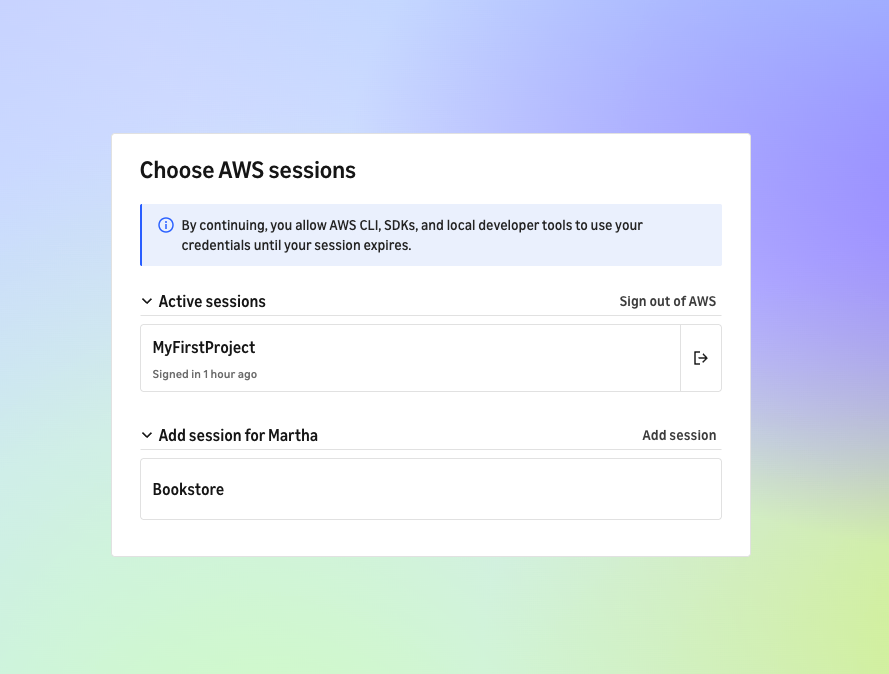
This page shows the active sessions and sessions you can add. A session represents your authenticated state with your AWS credentials, and it provides the same credentials that your AI coding agent uses to create and manage resources.
In this example, you've already logged in to MyFirstProject and have not
logged in to Bookstore. On the Choose AWS sessions page,
you can do the following:
To continue using AWS for
MyFirstProject, chooseMyFirstProject.To access
Bookstore, chooseBookstore.To remove any of the current sessions, choose the exit icon.
To access an AWS account using an IAM user, such as an account that you created with Sign up for AWS (advanced), choose Add session.
The credentials you choose will be the same credentials your AI coding agent uses to create and manage resources. For example, you might log in to the AWS CLI with the following command:
aws login --profile MyFirstProjectProfile
If you then choose the Bookstore session, your AI coding tool will
create AWS resources in the Bookstore project.
Always choose the session that matches the project associated with your profile.