Plan execution lifecycle
This section explains the lifecycle of a Region switch plan execution, the terminal states of an execution (completed, canceled, and failed), non-terminal states (such as paused), and the lifecycle controls available to you (timeouts, pause, retry, cancel, skip, and switch execution mode), which you can use to intervene in a running execution. It also explains the implications of these controls and provides examples of using these lifecycle controls to best design a recovery plan.
Plan execution lifecycle at a glance
Region switch runs the steps of a workflow in order. A parallel step runs its child steps at the same time. Some steps wait for a condition, such as capacity or target health. These steps keep waiting until the condition is met or the step timeout is reached.
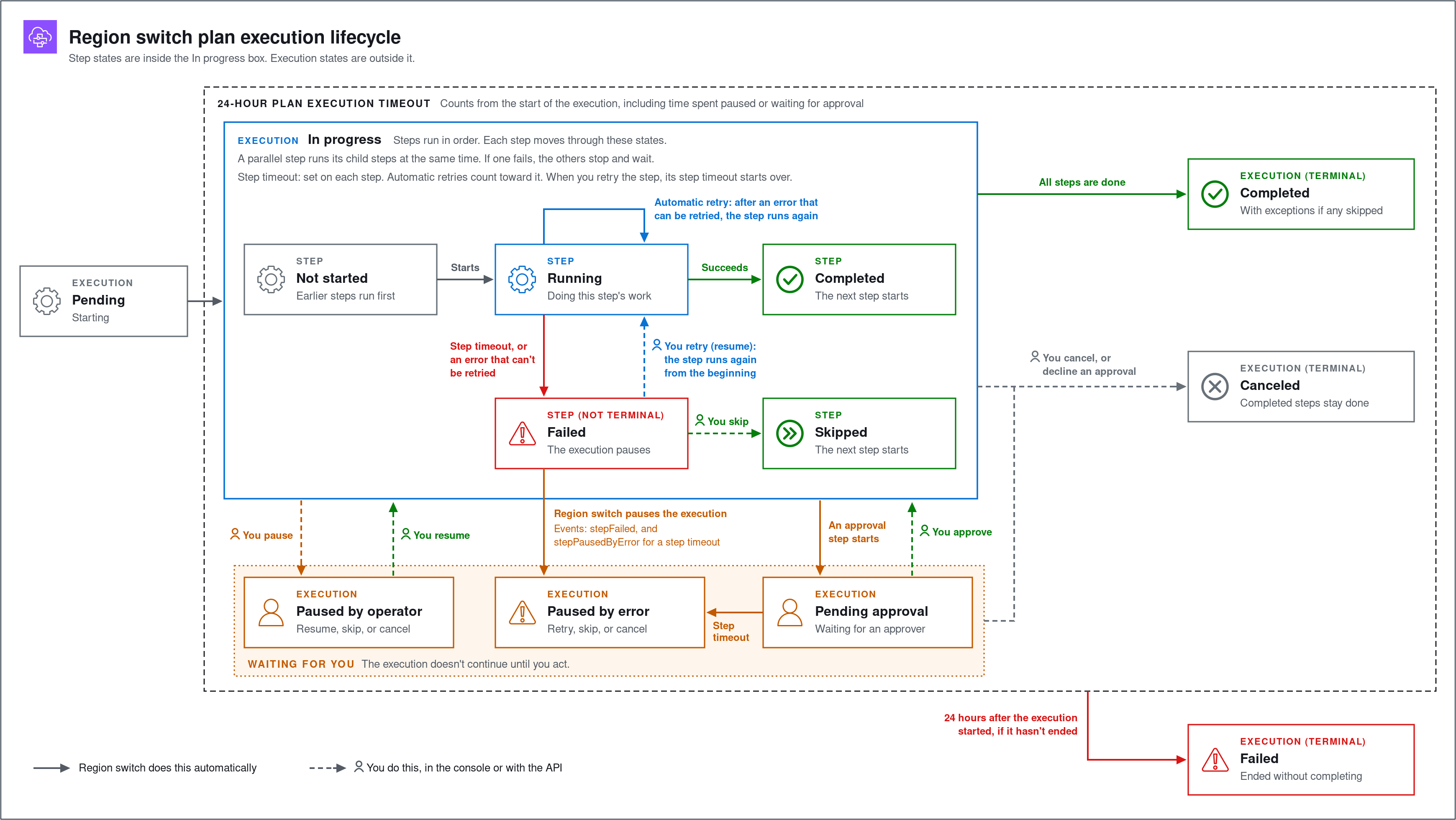
The following diagram shows a plan execution and its steps:
The In progress box is the
inProgressexecution state. Inside it are the step states:notStarted,running,completed,failed, andskipped.Outside it are the other execution states:
pending,pausedByOperator,pausedByFailedStep,pendingManualApproval,completed(orcompletedWithExceptions),canceled, andfailed. The Waiting for you group holds the two paused states andpendingManualApproval.The dashed box shows the 24 hours after the execution starts, including time spent paused or waiting for approval. It contains every state except
pendingand the execution statefailed.Solid arrows show what Region switch does on its own. Dashed arrows show actions that you take in the console or with the API.
An execution state is either terminal or non-terminal:
Terminal:
completed,completedWithExceptions,canceled, andfailed. A terminal state doesn't change, and the 24-hour plan execution timeout no longer applies. You can't resume or retry the execution. To continue, start a new execution.Non-terminal: All other states, such as
inProgress,pausedByFailedStep,pausedByOperator, andpendingManualApproval. The paused states wait for you to act, andpendingManualApprovalwaits for an approver.completedMonitoringApplicationHealthis also non-terminal: all steps are done, and the 24-hour plan execution timeout still applies while Region switch monitors application health alarms.
A failed step doesn't end the execution. While the execution is paused, you can retry or skip the step.
Region switch makes the following transitions on its own. The diagram shows them as solid arrows.
When an execution starts, it changes from
pendingtoinProgress, and the first step starts.When a running step returns an error that a retry might fix, the step stays
runningand retries.When a running step succeeds, the step is
completedand the next step starts.When a running step reaches its step timeout or an error that a retry can't fix, the step is
failedand the execution ispausedByFailedStep. The execution event log showsstepFailed, and alsostepPausedByErrorfor a step timeout. In a parallel step, the other child steps stop and wait.When an approval step starts, the execution is
pendingManualApproval.When an approval step reaches its step timeout, the step fails and the execution is
pausedByFailedStep.When all steps are done, the execution is
completed, orcompletedWithExceptionsif a step was skipped.When 24 hours have passed since the execution started and the execution hasn't ended, the execution is
failed.
You make the following transitions in the console or with the API. The diagram shows them as dashed arrows.
When you pause the execution, it's
pausedByOperator.When you retry or resume a paused execution, the current step runs again from the beginning, and its step timeout starts over.
When you skip a step in a paused execution, the step is
skippedand the next step starts.When an approver approves an approval step, the execution continues.
When you cancel the execution or decline an approval, the execution is
canceled. Region switch doesn't undo completed steps.
Lifecycle controls available during execution
The lifecycle controls available are timeouts, pause, resume, retry, switching between graceful and ungraceful mode, skip, and cancel. The following sections explain what each control does and its implications.
Timeouts
Three timeouts apply to a plan execution.
| Timeout | Where it's set | When it's reached |
|---|---|---|
Resource timeout, such as a Lambda function timeout |
On the resource |
The resource returns an error to Region switch, which retries the step until the step timeout. |
Step timeout |
In each step's Timeout setting. The default is 60 minutes. |
The step fails and the execution pauses. |
Plan execution timeout |
Set by Region switch to 24 hours. You can't change it. |
The execution ends with the state |
The step timeout covers the whole step, including automatic retries and the waits between them. When you retry or resume a paused execution, the step timeout starts over. Use the step timeout to set how long a step can keep trying before the execution pauses for you to act.
The plan execution timeout counts from the start of the execution. The time that an execution spends paused or waiting for approval counts toward the 24 hours.
When a step fails
When a step returns an error that a retry might fix, Region switch waits and then runs the step again. Examples include an error from your Lambda function, a Lambda function timeout, and throttling. Region switch keeps retrying until the step succeeds or reaches its step timeout.
The wait between retries works as follows:
For the Custom action Lambda execution block, Region switch waits the retry interval that you set before each retry.
For the AWS Systems Manager Run Command execution block, if the command fails, Region switch waits the retry interval before it sends the command again.
You set the retry interval up to 1,440 minutes (24 hours).
For all other errors and execution blocks, Region switch uses exponential backoff. The wait doubles after each retry, up to about 1 minute.
The wait counts toward the step timeout. If the retry interval is longer than the step timeout, the step makes only one attempt.
Some errors can't be fixed by a retry, such as access denied or a payload that Lambda rejects. These
errors fail the step right away, putting the execution into
the pausedByFailedStep state.
When the step reaches its step timeout, or returns an error that a retry can't fix, the following happens:
The step state changes to
failed.The execution state changes to
pausedByFailedStep. The execution event log showsstepFailed. For a step timeout, it also showsstepPausedByError.Other running steps in the same parallel step also stop and wait.
Region switch doesn't undo completed steps. Changes that earlier steps made, such as scaled capacity or shifted traffic, stay in place.
Region switch can also log stepFailed after an internal issue that it recovers from on its
own. In that case, the step runs again, and the execution continues.
For instructions on retrying, skipping, or canceling a paused execution, see What to do when a step fails.
What to do when a step fails
If a step failed, check its events in the execution event log on the execution details page, and fix the cause if you can. Then choose one of the following actions.
| Action | What happens | Console | API |
|---|---|---|---|
Retry the step |
The current step runs again from the beginning, and its step timeout starts over. |
Continue execution |
UpdatePlanExecution
with |
Retry the step in ungraceful mode |
Only this step runs again, in ungraceful mode. For more information, see Workflows and execution blocks. |
Update step execution, then Continue execution |
UpdatePlanExecutionStep
with |
Skip the step |
The step is skipped and the next step starts. If the execution then
completes, it ends as |
Update step execution |
|
Cancel the execution |
The execution ends as |
Cancel execution |
You can retry a failed step as many times as you need, until the execution reaches the 24-hour plan execution timeout. After an execution ends as failed or canceled, you can't retry or resume it, even if 24 hours haven't passed. To continue, start a new execution, which runs every step from the first one.
A paused execution fails 24 hours after the execution started if you take no action. Until then, changes that earlier steps made stay in place, and you can't start another execution of the plan.
To get notified when a step fails, create an EventBridge rule with the following event pattern. For more information, see Using Region switch in ARC with Amazon EventBridge.
{
  "source": [ "aws.arc-region-switch" ],
  "detail-type": [ "ARC Region Switch Plan Execution" ],
  "detail": {
    "eventType": [ "StepFailed", "StepPausedByError" ]
  }
}
The EventBridge event doesn't include the error message. To see it, check the step's events in the execution event log on the execution details page.
Pausing an execution
When you pause an execution, Region switch stops processing any new steps, and stops the current step that it is working on. It doesn't cancel or try to abort the current call, such as a Lambda function invocation or a Run Command command, but it stops tracking the call.
When you resume, this step runs again from the beginning. For more information, see Resuming and retrying an execution.
To pause, use the console or UpdatePlanExecution with pause. You can't pause an execution while
an approval step is waiting.
Resuming and retrying an execution
When you resume a paused execution, or retry a failed step, Region switch runs the current step again
from the beginning, and its step timeout starts over. It doesn't reconnect to work from the earlier
attempt. To resume or retry, use the console or UpdatePlanExecution with resume.
Region switch can run a step again from the beginning in several cases. For example:
You pause and then resume the execution, or retry a failed step.
You switch between graceful and ungraceful mode while the step runs.
The step returns an error that a retry might fix.
Execution blocks that manage an AWS resource for you, such as the Amazon Aurora Global Database and Amazon EC2 Auto Scaling group execution blocks, are designed to run again safely. The Custom action Lambda execution block and the AWS Systems Manager Run Command execution block run your own code again in each of these cases. If that code isn't safe to run more than once, running it again can cause unexpected results. For examples of how you can design your plans to be retry-safe, see Examples: Making steps safe to run again.
Switching between graceful and ungraceful mode
You can switch a running execution between graceful and ungraceful mode in the console or by
using UpdatePlanExecution with
switchToGraceful or switchToUngraceful. You can also switch a single running
step to ungraceful mode by using UpdatePlanExecutionStep with switchToUngraceful.
If you switch to ungraceful mode in the middle of a graceful call, Region switch might run the step again from the beginning in ungraceful mode. It doesn't cancel the graceful call, such as a Lambda function invocation, so the graceful call and the ungraceful attempt can be in progress at the same time. For information about what each execution block does in each mode, see Workflows and execution blocks.
Retrying a step in ungraceful mode
If a step fails in graceful mode, you can retry only that step in ungraceful mode. In the console,
choose Update step execution, and then Continue execution.
With the API, use UpdatePlanExecutionStep with switchToUngraceful, and then UpdatePlanExecution with
resume.
The step runs again from the beginning in ungraceful mode, and its step timeout starts over. Later steps run in the execution's mode. For information about what each execution block does in ungraceful mode, see Workflows and execution blocks.
Canceling an execution
When you cancel an execution, Region switch stops processing any new steps, and stops the current step
that it is working on. The execution ends with the state canceled. You can cancel an
execution at any time before it ends, including while it's pending or waiting for approval. To cancel,
use the console or CancelPlanExecution.
The canceled state is terminal, so you can't resume a canceled execution. To
continue, start a new execution, which runs every step from the first one.
Canceling doesn't reverse work that a step already started on your resources, and in most cases doesn't stop it. For the AWS Systems Manager Run Command execution block, Region switch makes a best-effort attempt to cancel the running command, but work that the command already did isn't reversed.
Region switch doesn't roll back completed steps. Changes that earlier steps made, such as scaled capacity or shifted traffic, stay in place. If a rollback is needed, you must perform the rollback steps yourself. Use cancel as an emergency stop, for example, if you started the execution by accident or in error.
Examples of using the lifecycle controls
The following examples show how to use the lifecycle controls when you design a plan.
Example: Setting the right timeouts in the plan
A step that uses the Custom action Lambda execution block has a 3-minute step timeout and a 1-minute retry interval. The function has a 90-second function timeout and runs longer than that. The execution proceeds as follows:
When the step starts, Region switch invokes the function.
After 90 seconds, the function times out. Region switch waits 1 minute and invokes the function again.
3 minutes after the step started, during the second invocation, the step reaches its step timeout. The step fails and the execution pauses.
No one retries, skips, or cancels the step. After 24 hours, the execution reaches the plan execution timeout and fails. The console shows the execution as Failed, with a duration of 1,440 minutes.
Do: Set the step timeout longer than the function timeout plus the retry interval, for each attempt that you want. In this example, for three attempts, set the step timeout to at least 8 minutes.
Don't: Set the step timeout shorter than the function timeout. The step reaches its step timeout during the first invocation, so it doesn't retry.
Do: Create an EventBridge rule that notifies you when a step fails, and act on a paused execution before the 24-hour plan execution timeout. For more information, see What to do when a step fails.
Examples: Making steps safe to run again
If you use the Custom action Lambda execution block or the AWS Systems Manager Run Command execution block, design your Lambda functions and Run Command documents to reach the same end state no matter how many times they run. When your Lambda payload is a JSON object, or when you don't configure a payload, Region switch adds the execution ID and step name to it. These values stay the same each time a step runs again, so you can use them to detect a repeated run.
A Lambda function that starts a workflow and waits for it. A step that uses the Custom action Lambda execution block starts an AWS Step Functions workflow that promotes a database replica, and then waits for the workflow to finish. The function reaches its timeout, so Region switch retries the step. The function starts a second workflow while the first one is still running.
Do: Before you start the workflow, check whether it's already running or finished. For example, name the workflow execution by using the execution ID and step name, which stay the same each time the step runs. Remove characters that Step Functions doesn't allow in names, such as
/and spaces.Don't: Start a new workflow each time the function runs.
A step that is safe to run again. A step that uses the Custom action Lambda execution block
sets a maintenance flag to on. If the step runs again, it sets the same flag to the
same value. The result is the same as running it once. Aim for this pattern: set a desired end
state instead of performing a one-time action.
A step that isn't safe to run again. A step that uses the Custom action Lambda execution block increments a counter, such as a version number. If the step runs again, it increments the counter a second time, and the value is wrong.
Don't: Perform one-time actions that change a value each time they run.
Do: Set the counter to a known target value, or record that the step already ran and skip the increment on later runs.
Execution and step states
A plan execution can be in one of the following states.
| State | Description |
|---|---|
|
The plan execution is starting. |
|
The plan execution is running steps. |
|
A manual approval step is waiting for approval. |
|
A step failed. The plan execution is waiting for you to retry, skip, or cancel. |
|
A user paused the plan execution. |
|
The plan execution completed all steps. |
|
The plan execution completed, and one or more steps were skipped. |
|
The plan execution completed all steps, and Region switch is monitoring application health alarms. This state isn't terminal, and the 24-hour plan execution timeout still applies. |
|
The plan execution was canceled, or an approval was declined. |
|
The plan execution ended without completing. For example, it reached the 24-hour plan execution timeout, or the plan was deleted before the execution started. |
A step can be in one of the following states.
| State | Description |
|---|---|
|
The step hasn't started. |
|
The step is running, including any retries. The current step also shows this state while you pause the execution. |
|
A manual approval step is waiting for approval. |
|
The step completed. |
|
The step reached its step timeout or returned an error that a retry can't fix. A declined approval step also shows this state. |
|
The step was skipped. |
|
The execution was canceled or failed before the step finished. Steps that were running, waiting for approval, or hadn't started show this state. |