Las traducciones son generadas a través de traducción automática. En caso de conflicto entre la traducción y la version original de inglés, prevalecerá la version en inglés.
Migración desde Couchbase Server
Introducción
Esta guía presenta los puntos clave que se deben tener en cuenta al migrar de Couchbase Server a Amazon DocumentDB. Explica las consideraciones para las fases de descubrimiento, planificación, ejecución y validación de la migración. También explica cómo realizar migraciones en línea y fuera de línea.
Comparación con Amazon DocumentDB
| Servidor Couchbase | Amazon DocumentDB | |
|---|---|---|
| Organización de datos | En las versiones 7.0 y posteriores, los datos se organizan en grupos, ámbitos y colecciones. En versiones anteriores, los datos se organizaban en cubos. | Los datos se organizan en bases de datos y colecciones. |
| Compatibilidad | Los hay distintos APIs para cada servicio (por ejemplo, datos, índices, búsquedas, etc.). Las búsquedas secundarias utilizan SQL++ (antes conocido como N1QL), un lenguaje de consulta basado en el SQL estándar de ANSI, por lo que muchos desarrolladores lo conocen bien. | Amazon DocumentDB es compatible con la API de MongoDB. |
| Arquitectura | El almacenamiento está adjunto a cada instancia del clúster. No se puede escalar la computación de forma independiente del almacenamiento. | Amazon DocumentDB está diseñado para la nube y para evitar las limitaciones de las arquitecturas de bases de datos tradicionales. Las capas de procesamiento y almacenamiento están separadas en Amazon DocumentDB y la capa de procesamiento se puede escalar independientemente del almacenamiento. |
| Añada capacidad de lectura a pedido | Los clústeres se pueden escalar agregando instancias. Como el almacenamiento está conectado a la instancia en la que se ejecuta el servicio, el tiempo que tarda en ampliarse depende de la cantidad de datos que deban trasladarse a la nueva instancia o reequilibrarse. | Puede lograr el escalado de lectura para su clúster de Amazon DocumentDB creando hasta 15 réplicas de Amazon DocumentDB en el clúster. No hay ningún impacto en la capa de almacenamiento. |
| Recupérese rápidamente de una falla en un nodo | Los clústeres tienen capacidades de conmutación por error automática, pero el tiempo necesario para que el clúster recupere toda su potencia depende de la cantidad de datos que se deban mover a la nueva instancia. | Amazon DocumentDB puede realizar la conmutación por error del principal normalmente en 30 segundos y restaurar el clúster a su estado completo en 8 a 10 minutos, independientemente de la cantidad de datos del clúster. |
| Amplíe el almacenamiento a medida que crecen los datos | Para el almacenamiento de clústeres autogestionados y IOs no lo escale automáticamente. | Almacene y IOs escale automáticamente en Amazon DocumentDB. |
| Backup de datos sin afectar el rendimiento | Las copias de seguridad las realiza el servicio de copias de seguridad y no están habilitadas de forma predeterminada. Como el almacenamiento y la computación no están separados, esto puede repercutir en el rendimiento. | Las copias de seguridad de Amazon DocumentDB están habilitadas de forma predeterminada y no se pueden desactivar. Las copias de seguridad las gestiona la capa de almacenamiento, por lo que no tienen ningún impacto en la capa de procesamiento. Amazon DocumentDB admite la restauración a partir de una instantánea de clúster y la restauración a un punto en el tiempo. |
| Durabilidad de los datos | Puede haber un máximo de 3 réplicas de datos en un clúster para un total de 4 copias. Cada instancia en la que se ejecute el servicio de datos tendrá copias activas y 1, 2 o 3 réplicas de los datos. | Amazon DocumentDB conserva 6 copias de los datos independientemente del número de instancias de cómputo que haya con un quórum de escritura de 4 y sigue siendo verdadero. Los clientes reciben un acuse de recibo cuando la capa de almacenamiento haya conservado 4 copias de los datos. |
| Coherencia | Se admite la coherencia inmediata de K/V las operaciones. El SDK de Couchbase dirige las K/V solicitudes a la instancia específica que contiene la copia activa de los datos, por lo que, una vez confirmada la actualización, el cliente tiene la garantía de leerla. Con el tiempo, la replicación de las actualizaciones en otros servicios (indexación, búsqueda, análisis, creación de eventos) es coherente. | Con el tiempo, las réplicas de Amazon DocumentDB son coherentes. Si se requieren lecturas de coherencia inmediatas, el cliente puede leer desde la instancia principal. |
| Replicación | La replicación entre centros de datos (XDCR) proporciona una replicación de datos filtrada, activa-pasiva o activa-activa y activa, de datos en muchísimas topologías. | Los clústeres globales de Amazon DocumentDB proporcionan replicación activa-pasiva en topologías 1:muchos (hasta 10). |
Discovery
La migración a Amazon DocumentDB requiere un conocimiento exhaustivo de la carga de trabajo de la base de datos existente. El descubrimiento de la carga de trabajo es el proceso de analizar la configuración del clúster de Couchbase y las características operativas (conjunto de datos, índices y carga de trabajo) para garantizar una transición fluida con una interrupción mínima.
Configuración del clúster
Couchbase utiliza una arquitectura centrada en los servicios, en la que cada capacidad corresponde a un servicio. Ejecute el siguiente comando en su clúster de Couchbase para determinar qué servicios se están utilizando (consulte Obtener información sobre los nodos):
curl -v -u <administrator>:<password> \
  http://<ip-address-or-hostname>:<port>/pools/nodes | \
  jq '[.nodes[].services[]] | unique'
Código de salida de ejemplo:
[
  "backup",
  "cbas",
  "eventing",
  "fts",
  "index",
  "kv",
  "n1ql"
]
Los servicios de Couchbase incluyen lo siguiente:
Servicio de datos (kv)
El servicio de datos proporciona read/write acceso a los datos de la memoria y del disco.
Amazon DocumentDB admite K/V operaciones con datos JSON mediante la API de MongoDB.
Servicio de consultas (n1ql)
El servicio de consultas admite la consulta de datos JSON a través de SQL++.
Amazon DocumentDB admite la consulta de datos JSON mediante la API de MongoDB.
Servicio de indexación (índice)
El servicio de indexación crea y mantiene índices en los datos, lo que permite realizar consultas más rápidas.
Amazon DocumentDB admite un índice principal predeterminado y la creación de índices secundarios en datos JSON mediante la API de MongoDB.
Servicio de búsqueda (fts)
El servicio de búsqueda admite la creación de índices para la búsqueda de texto completo.
La función de búsqueda de texto completo nativa de Amazon DocumentDB le permite realizar búsquedas de texto en conjuntos de datos textuales de gran tamaño mediante índices de texto especiales mediante la API de MongoDB. Para los casos de uso de búsquedas avanzadas, la integración de Amazon DocumentDB Zero-ETL con Amazon OpenSearch Service
Servicio de análisis (cbas)
El servicio de análisis permite analizar los datos de JSON prácticamente en tiempo real.
Amazon DocumentDB admite consultas ad hoc en datos JSON mediante la API de MongoDB. También puede ejecutar consultas complejas en sus datos JSON en Amazon DocumentDB mediante Apache Spark que se ejecuta en Amazon EMR
Servicio de eventos (eventing)
El servicio de eventos ejecuta una lógica empresarial definida por el usuario en respuesta a los cambios en los datos.
Amazon DocumentDB automatiza las cargas de trabajo basadas en eventos mediante la invocación de AWS Lambda funciones cada vez que los datos cambian con el clúster de Amazon DocumentDB.
Servicio de backup (backup)
El servicio de respaldo programa copias de seguridad de datos completas e incrementales y fusiones de copias de seguridad de datos anteriores.
Amazon DocumentDB realiza copias de seguridad continuas de sus datos en Amazon S3 con un período de retención de 1 a 35 días para que pueda restaurarlos rápidamente en cualquier punto dentro del período de retención de la copia de seguridad. Amazon DocumentDB también toma instantáneas automáticas de los datos como parte de este proceso de copia de seguridad continua. También puede gestionar las copias de seguridad y la restauración de Amazon DocumentDB
Características operativas
Utilice la herramienta de detección de Couchbase para
Conjunto de datos
La herramienta recupera la siguiente información sobre el depósito, el alcance y la recopilación:
nombre del bucket
tipo de bucket
nombre del ámbito
nombre de la colección
tamaño total (bytes)
total de artículos
tamaño del artículo (bytes)
Índices
La herramienta recupera las siguientes estadísticas de índice y todas las definiciones de índice de todos los cubos. Tenga en cuenta que los índices principales están excluidos, ya que Amazon DocumentDB crea automáticamente un índice principal para cada colección.
nombre del bucket
nombre del ámbito
nombre de la colección
nombre del índice
tamaño del índice (bytes)
Carga de trabajo
La herramienta recupera las métricas de las K/V consultas de N1QL. K/V los valores de las métricas se recopilan a nivel de segmento y las métricas de SQL++ se recopilan a nivel de clúster.
Las opciones de la línea de comandos de la herramienta son las siguientes:
python3 discovery.py \
  --username <source cluster username> \
  --password <source cluster password> \
  --data_node <data node IP address or DNS name> \
  --admin_port <administration http REST port> \
  --kv_zoom <get bucket statistics for specified interval> \
  --tools_path <full path to Couchbase tools> \
  --index_metrics <gather index definitions and SQL++ metrics> \
  --indexer_port <indexer service http REST port> \
  --n1ql_start <start time for sampling> \
  --n1ql_step <sample interval over the sample period>
A continuación se muestra un comando de ejemplo:
python3 discovery.py \
  --username username \
  --password ******** \
  --data_node "http://10.0.0.1" \
  --admin_port 8091 \
  --kv_zoom week \
  --tools_path "/opt/couchbase/bin" \
  --index_metrics true \
  --indexer_port 9102 \
  --n1ql_start -60000 \
  --n1ql_step 1000
Los valores de las métricas K/V se basarán en muestras cada 10 minutos durante la semana pasada (consulte el método HTTP y el URI
collection-stats.csv: información sobre el depósito, el alcance y la recopilación
bucket,bucket_type,scope_name,collection_name,total_size,total_items,document_size
beer-sample,membase,_default,_default,2796956,7303,383
gamesim-sample,membase,_default,_default,114275,586,196
pillowfight,membase,_default,_default,1901907769,1000006,1902
travel-sample,membase,inventory,airport,547914,1968,279
travel-sample,membase,inventory,airline,117261,187,628
travel-sample,membase,inventory,route,13402503,24024,558
travel-sample,membase,inventory,landmark,3072746,4495,684
travel-sample,membase,inventory,hotel,4086989,917,4457
...
index-stats.csv: indexa nombres y tamaños
bucket,scope,collection,index-name,index-size
beer-sample,_default,_default,beer_primary,468144
gamesim-sample,_default,_default,gamesim_primary,87081
travel-sample,inventory,airline,def_inventory_airline_primary,198290
travel-sample,inventory,airport,def_inventory_airport_airportname,513805
travel-sample,inventory,airport,def_inventory_airport_city,487289
travel-sample,inventory,airport,def_inventory_airport_faa,526343
travel-sample,inventory,airport,def_inventory_airport_primary,287475
travel-sample,inventory,hotel,def_inventory_hotel_city,497125
...
kv-stats.csv: obtiene, establece y elimina las métricas de todos los grupos
bucket,gets,sets,deletes
beer-sample,0,0,0
gamesim-sample,0,0,0
pillowfight,369,521,194
travel-sample,0,0,0
n1ql-stats.csv: SQL++ selecciona, elimina e inserta métricas para el clúster
selects,deletes,inserts
0,132,87
indexes- .txt<bucket-name>: definiciones de índice de todos los índices del depósito. Tenga en cuenta que los índices principales están excluidos, ya que Amazon DocumentDB crea automáticamente un índice principal para cada colección.
CREATE INDEX `def_airportname` ON `travel-sample`(`airportname`)
CREATE INDEX `def_city` ON `travel-sample`(`city`)
CREATE INDEX `def_faa` ON `travel-sample`(`faa`)
CREATE INDEX `def_icao` ON `travel-sample`(`icao`)
CREATE INDEX `def_inventory_airport_city` ON `travel-sample`.`inventory`.`airport`(`city`)
CREATE INDEX `def_inventory_airport_faa` ON `travel-sample`.`inventory`.`airport`(`faa`)
CREATE INDEX `def_inventory_hotel_city` ON `travel-sample`.`inventory`.`hotel`(`city`)
CREATE INDEX `def_inventory_landmark_city` ON `travel-sample`.`inventory`.`landmark`(`city`)
CREATE INDEX `def_sourceairport` ON `travel-sample`(`sourceairport`)
...
Planificación
En la fase de planificación, determinará los requisitos del clúster de Amazon DocumentDB y el mapeo de los depósitos, ámbitos y colecciones de Couchbase a las bases de datos y colecciones de Amazon DocumentDB.
Requisitos del clúster de Amazon DocumentDB
Utilice los datos recopilados en la fase de descubrimiento para dimensionar el clúster de Amazon DocumentDB. Consulte Dimensionamiento de instancias para obtener más información sobre el tamaño de su clúster de Amazon DocumentDB.
Asignación de depósitos, ámbitos y colecciones a bases de datos y colecciones
Determine las bases de datos y colecciones que existirán en sus clústeres de Amazon DocumentDB. Tenga en cuenta las siguientes opciones en función de cómo estén organizados los datos en su clúster de Couchbase. Estas no son las únicas opciones, pero proporcionan puntos de partida para que los tenga en cuenta.
Couchbase Server 6.x o anterior
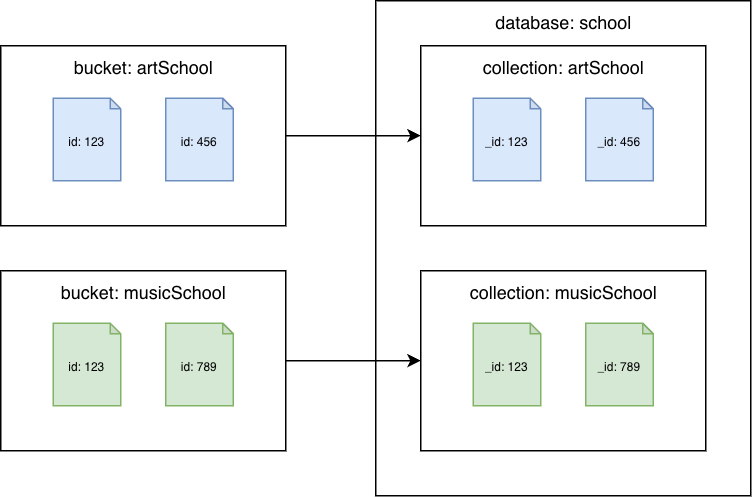
Couchbase pasa a las colecciones de Amazon DocumentDB
Migre cada depósito a una colección diferente de Amazon DocumentDB. En este escenario, el valor del documento de Couchbase se utilizará como id valor de Amazon _id DocumentDB.
Couchbase Server 7.0 o posterior
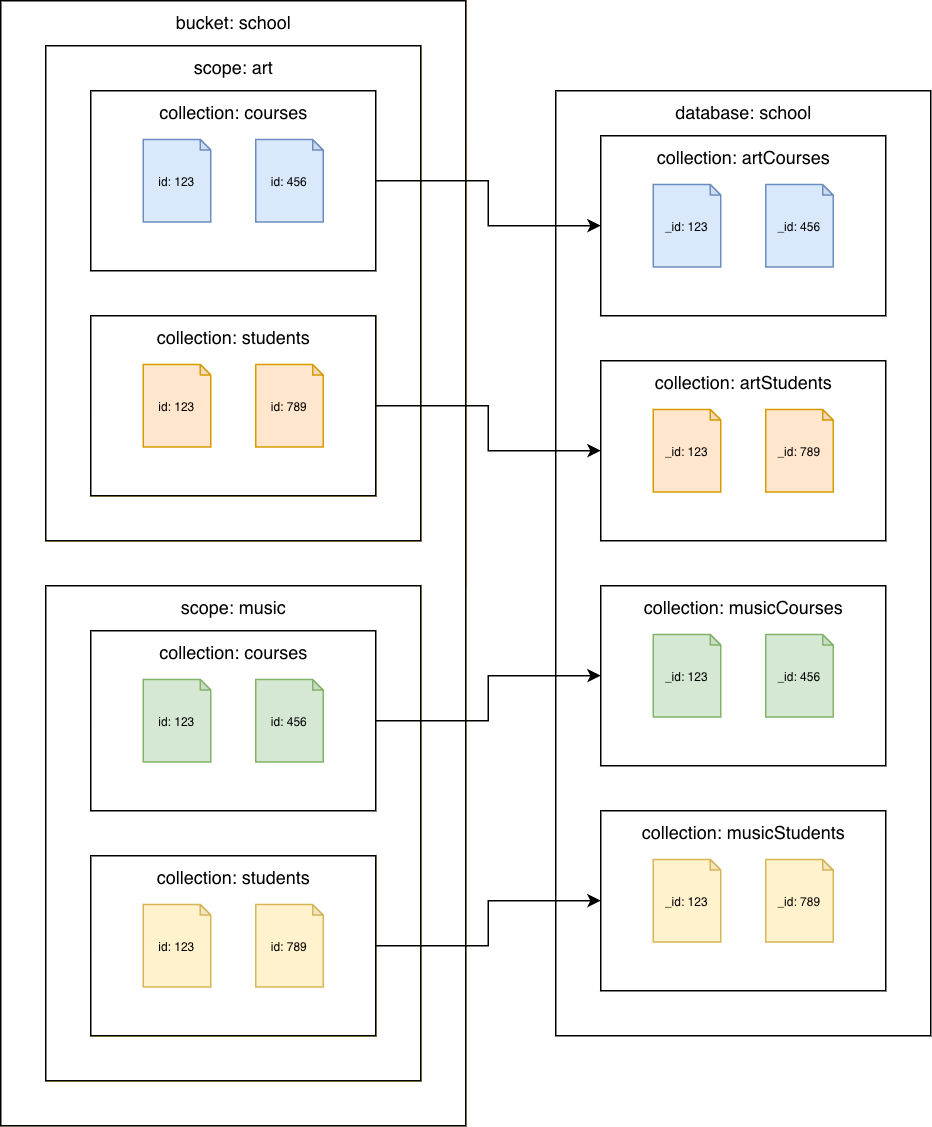
De las colecciones de Couchbase a las colecciones de Amazon DocumentDB
Migre cada colección a una colección diferente de Amazon DocumentDB. En este escenario, el valor del documento de Couchbase se utilizará como id valor de Amazon _id DocumentDB.
Migración
Migración de índices
La migración a Amazon DocumentDB implica transferir no solo datos, sino también índices para mantener el rendimiento de las consultas y optimizar las operaciones de la base de datos. En esta sección se describe el step-by-step proceso detallado para migrar índices a Amazon DocumentDB y, al mismo tiempo, garantizar la compatibilidad y la eficacia.
Utilice Amazon Q para convertir CREATE INDEX sentencias de SQL++ en comandos de Amazon createIndex() DocumentDB.
Cargue los archivos indexes-.txt <bucket name>creados por la herramienta de descubrimiento para Couchbase.
Introduzca el siguiente mensaje:
Convert the Couchbase CREATE INDEX statements to Amazon DocumentDB createIndex commands
Amazon Q generará comandos de Amazon DocumentDB createIndex() equivalentes. Tenga en cuenta que es posible que tenga que actualizar los nombres de las colecciones en función de la forma en que haya asignado los buckets, los ámbitos y las colecciones de Couchbase a las colecciones de Amazon DocumentDB.
Por ejemplo:
indexes-beer-sample.txt
CREATE INDEX `beerType` ON `beer-sample`(`type`)
CREATE INDEX `code` ON `beer-sample`(`code`) WHERE (`type` = "brewery")
Ejemplo de salida de Amazon Q (extracto):
db.beerSample.createIndex(
  { "type": 1 },
  {
    "name": "beerType",
    "background": true
  }
)

db.beerSample.createIndex(
  { "code": 1 },
  {
    "name": "code",
    "background": true,
    "partialFilterExpression": { "type": "brewery" }
  }
)
Para conocer los índices que Amazon Q no pueda convertir, consulte Administración de índices e índices de Amazon DocumentDB y propiedades de índices para obtener más información.
Refactoriza el código para usar MongoDB APIs
Los clientes usan Couchbase para conectarse al servidor Couchbase SDKs . Los clientes de Amazon DocumentDB utilizan los controladores MongoDB para conectarse a Amazon DocumentDB. Todos los idiomas compatibles con Couchbase también SDKs son compatibles con los controladores de MongoDB. Consulte Controladores MongoDB
Como Couchbase Server y Amazon DocumentDB APIs son diferentes, tendrá que refactorizar el código para usar la MongoDB adecuada. APIs Puede usar Amazon Q para convertir las llamadas a la K/V API y las consultas de SQL++ en el MongoDB equivalente: APIs
Cargue los archivos de código fuente.
Introduzca el siguiente mensaje:
Convert the Couchbase API code to Amazon DocumentDB API code
Con el ejemplo de código Python de Hello Couchbase
from datetime import timedelta
from pymongo import MongoClient

# Connection parameters
database_name = "travel-sample"

# Connect to Amazon DocumentDB cluster
client = MongoClient('<Amazon DocumentDB connection string>')

# Get reference to database and collection
db = client['travel-sample']
airline_collection = db['airline']

# upsert document function
def upsert_document(doc):
    print("\nUpsert Result: ")
    try:
        # key will equal: "airline_8091"
        key = doc["type"] + "_" + str(doc["id"])
        doc['_id'] = key # Amazon DocumentDB uses _id as primary key
        result = airline_collection.update_one(
            {'_id': key},
            {'$set': doc},
            upsert=True
        )
        print(f"Modified count: {result.modified_count}")
    except Exception as e:
        print(e)

# get document function
def get_airline_by_key(key):
    print("\nGet Result: ")
    try:
        result = airline_collection.find_one({'_id': key})
        print(result)
    except Exception as e:
        print(e)

# query for document by callsign
def lookup_by_callsign(cs):
    print("\nLookup Result: ")
    try:
        result = airline_collection.find(
            {'callsign': cs},
            {'name': 1, '_id': 0}
        )
        for doc in result:
            print(doc['name'])
    except Exception as e:
        print(e)

# Test document
airline = {
    "type": "airline",
    "id": 8091,
    "callsign": "CBS",
    "iata": None,
    "icao": None,
    "name": "Couchbase Airways",
}

upsert_document(airline)
get_airline_by_key("airline_8091")
lookup_by_callsign("CBS")
Consulte Conexión mediante programación a Amazon DocumentDB para ver ejemplos de conexión a Amazon DocumentDB en Python, Node.js, PHP, Go, Java, C#/.NET, R y Ruby.
Seleccione el enfoque de migración
Al migrar datos a Amazon DocumentDB, hay dos opciones:
Migración sin conexión
Considere la posibilidad de realizar una migración fuera de línea cuando:
El tiempo de inactividad es aceptable: la migración sin conexión implica detener las operaciones de escritura en la base de datos de origen, exportar los datos y, a continuación, importarlos a Amazon DocumentDB. Este proceso provoca un tiempo de inactividad para la aplicación. Si su aplicación o carga de trabajo pueden tolerar este período de falta de disponibilidad, la migración sin conexión es una opción viable.
Migrar conjuntos de datos más pequeños o realizar pruebas de concepto: en el caso de conjuntos de datos más pequeños, el tiempo necesario para el proceso de exportación e importación es relativamente corto, por lo que la migración sin conexión es un método rápido y sencillo. También es adecuado para el desarrollo, las pruebas y los proof-of-concept entornos en los que el tiempo de inactividad es menos crítico.
La simplicidad es una prioridad: el método offline, que utiliza cbexport y mongoimport, suele ser el enfoque más sencillo para migrar datos. Evita las complejidades de la captura de datos de cambios (CDC) que implican los métodos de migración en línea.
No es necesario replicar los cambios continuos: si la base de datos de origen no recibe cambios de forma activa durante la migración, o si esos cambios no son fundamentales para capturarlos y aplicarlos al destino durante el proceso de migración, es apropiado adoptar un enfoque fuera de línea.
Couchbase Server 6.x o anterior
De Couchbase a la colección Amazon DocumentDB
Exporte los datos con cbexport json--format esta opción, puede usar lines o. list
cbexport json \
  --cluster <source cluster endpoint> \
  --bucket <bucket name> \
  --format <lines | list> \
  --username <username> \
  --password <password> \
  --output export.json \
  --include-key _id
Importe los datos a una colección de Amazon DocumentDB mediante mongoimport con la opción adecuada para importar las líneas o la lista:
líneas:
mongoimport \
  --db <database> \
  --collection <collection> \
  --uri "<Amazon DocumentDB cluster connection string>" \
  --file export.json
lista:
mongoimport \
  --db <database> \
  --collection <collection> \
  --uri "<Amazon DocumentDB cluster connection string>" \
  --jsonArray \
  --file export.json
Couchbase Server 7.0 o posterior
Para realizar una migración sin conexión, utilice las herramientas cbexport y mongoimport:
Depósito de Couchbase con alcance y colección predeterminados
Exporte los datos con cbexport json--format esta opción, puede usar lines o. list
cbexport json \
  --cluster <source cluster endpoint> \
  --bucket <bucket name> \
  --format <lines | list> \
  --username <username> \
  --password <password> \
  --output export.json \
  --include-key _id
Importe los datos a una colección de Amazon DocumentDB mediante mongoimport con la opción adecuada para importar las líneas o la lista:
líneas:
mongoimport \
  --db <database> \
  --collection <collection> \
  --uri "<Amazon DocumentDB cluster connection string>" \
  --file export.json
lista:
mongoimport \
  --db <database> \
  --collection <collection> \
  --uri "<Amazon DocumentDB cluster connection string>" \
  --jsonArray \
  --file export.json
De las colecciones de Couchbase a las colecciones de Amazon DocumentDB
Exporte los datos mediante cbexport json--include-data opción para exportar cada colección. Para la --format opción puedes usar lines olist. Utilice las --collection-field opciones --scope-field y para almacenar el nombre del ámbito y la colección en los campos especificados de cada documento JSON.
cbexport json \
  --cluster <source cluster endpoint> \
  --bucket <bucket name> \
  --include-data <scope name>.<collection name> \
  --format <lines | list> \
  --username <username> \
  --password <password> \
  --output export.json \
  --include-key _id \
  --scope-field "_scope" \
  --collection-field "_collection"
Como cbexport agregó los _collection campos _scope y a todos los documentos exportados, puede eliminarlos de todos los documentos del archivo de exportación mediante la función de búsqueda y reemplazosed, o mediante el método que prefiera.
Importe los datos de cada colección a una colección de Amazon DocumentDB mediante mongoimport con la opción adecuada para importar las líneas o la lista:
líneas:
mongoimport \
--db <database> \
--collection <collection> \
--uri "<Amazon DocumentDB cluster connection string>" \
--file export.json
lista:
mongoimport \
--db <database> \
--collection <collection> \
--uri "<Amazon DocumentDB cluster connection string>" \
--jsonArray \
--file export.json
Migración en línea
Considere la posibilidad de realizar una migración en línea cuando necesite minimizar el tiempo de inactividad y los cambios continuos deban replicarse en Amazon DocumentDB prácticamente en tiempo real.
Consulte Cómo realizar una migración en vivo de Couchbase a Amazon DocumentDB para
Couchbase Server 6.x o anterior
De Couchbase a la colección Amazon DocumentDB
La utilidad de migración de Couchbase está preconfigurada paradocument.id.strategy parámetro está configurado para usar el valor de la clave del mensaje como valor de _id campo (consulte las propiedades de la estrategia del identificador del conector colector
ConnectorConfiguration:
  document.id.strategy: 'com.mongodb.kafka.connect.sink.processor.id.strategy.ProvidedInKeyStrategy'
Couchbase Server 7.0 o posterior
Depósito de Couchbase con alcance y colección predeterminados
La utilidad de migración de Couchbase está preconfigurada paradocument.id.strategy parámetro está configurado para usar el valor de la clave del mensaje como valor de _id campo (consulte las propiedades de la estrategia del identificador del conector colector
ConnectorConfiguration:
  document.id.strategy: 'com.mongodb.kafka.connect.sink.processor.id.strategy.ProvidedInKeyStrategy'
De las colecciones de Couchbase a las colecciones de Amazon DocumentDB
Configure el conector de origen
ConnectorConfiguration:
  # add couchbase.collections configuration
  couchbase.collections: '<scope 1>.<collection 1>, <scope 1>.<collection 2>, ...'
Configure el conector receptor
ConnectorConfiguration:
  # remove collection configuration
  #collection: 'test'

  # modify topics configuration
  topics: '<bucket>.<scope 1>.<collection 1>, <bucket>.<scope 1>.<collection 2>, ...'

  # add topic.override.%s.%s configurations for each topic
  topic.override.<bucket>.<scope 1>.<collection 1>.collection: '<collection>'
  topic.override.<bucket>.<scope 1>.<collection 2>.collection: '<collection>'
Validación
En esta sección se proporciona un proceso de validación detallado para comprobar la coherencia e integridad de los datos tras la migración a Amazon DocumentDB. Los pasos de validación se aplican independientemente del método de migración.
Temas
Compruebe que todas las colecciones existan en el destino
Fuente de Couchbase
opción 1: consulta el banco de trabajo
SELECT RAW `path`
  FROM system:keyspaces
  WHERE `bucket` = '<bucket>'
opción 2: herramienta cbq
cbq \
  -e <source cluster endpoint> \
  -u <username> \
  -p <password> \
  -q "SELECT RAW `path`
       FROM system:keyspaces
       WHERE `bucket` = '<bucket>'"
Amazon DocumentDB como destino
mongosh (consulte Conectarse a su clúster de Amazon DocumentDB):
db.getSiblingDB('<database>')
db.getCollectionNames()
Verifique el recuento de documentos entre los clústeres de origen y destino
Fuente de Couchbase
Couchbase Server 6.x o anterior
opción 1: consulta el banco de trabajo
SELECT COUNT(*)
FROM `<bucket>`
cbq \
  -e <source cluster endpoint> \
  -u <username> \
  -p <password> \
  -q "SELECT COUNT(*)
       FROM `<bucket:>`"
Couchbase Server 7.0 o posterior
opción 1: consulta el banco de trabajo
SELECT COUNT(*)
FROM `<bucket>`.`<scope>`.`<collection>`
cbq \
  -e <source cluster endpoint> \
  -u <username> \
  -p <password> \
  -q "SELECT COUNT(*)
       FROM `<bucket:>`.`<scope>`.`<collection>`"
Amazon DocumentDB como destino
mongosh (consulte Conectarse a su clúster de Amazon DocumentDB):
db = db.getSiblingDB('<database>')
db.getCollection('<collection>').countDocuments()
Compare documentos entre los clústeres de origen y destino
Fuente de Couchbase
Couchbase Server 6.x o anterior
opción 1: consulta el banco de trabajo
SELECT META().id as _id, *
FROM `<bucket>`
LIMIT 5
cbq \
  -e <source cluster endpoint>
  -u <username> \
  -p <password> \
  -q "SELECT META().id as _id, *
       FROM `<bucket>` \
       LIMIT 5"
Couchbase Server 7.0 o posterior
opción 1: consulta el banco de trabajo
SELECT COUNT(*)
FROM `<bucket>`.`<scope>`.`<collection>`
cbq \
  -e <source cluster endpoint> \
  -u <username> \
  -p <password> \
  -q "SELECT COUNT(*)
       FROM `<bucket:>`.`<scope>`.`<collection>`"
Amazon DocumentDB como destino
mongosh (consulte Conectarse a su clúster de Amazon DocumentDB):
db = db.getSiblingDB('<database>')
db.getCollection('<collection>').find({
  _id: {
    $in: [
      <_id 1>, <_id 2>, <_id 3>, <_id 4>, <_id 5>
    ]
  }
})
