Migrate DNS records in bulk to an Amazon Route 53 private hosted zone
Ram Kandaswamy, Amazon Web Services
Summary
This pattern automates the bulk migration of DNS records into an Amazon Route 53 hosted zone. It uses a Python script with the AWS SDK for Python (Boto3) to read record data from a JSON file stored in Amazon Simple Storage Service (Amazon S3) and create the records programmatically by using the Route 53 API.
If your source system exports standard BIND zone files, the Route 53 native import feature or cli53
Use this pattern when you need to migrate a large number of DNS records from an existing system into a Route 53 hosted zone without creating each record manually through the console.
Prerequisites and limitations
Prerequisites
An active AWS account
An Excel worksheet that contains hosted zone records with columns for fully qualified domain name (FQDN), record type, Time to Live (TTL), and value
Python 3.12 or later (see Download Python
) The pandas Python library installed (
pip3 install pandas)Familiarity with DNS record types such as A, NAPTR, and SRV records (see Supported DNS record types
) Familiarity with the Python language and its libraries
Limitations
This pattern does not use all available properties of the
change_resource_record_setsAPI call. Extend the code as needed for your use case.In the Excel worksheet, the value in each row is assumed to be unique. Multiple values for each FQDN are expected to appear in the same row. If that is not the case, modify the code to concatenate multiple values for the same FQDN.
This pattern calls the Route 53 API directly by using Boto3. You can enhance the code to use an AWS CloudFormation wrapper for the
create_stackandupdate_stackcommands and use the JSON values to populate template resources.If your source system can export records in BIND zone file format consider using the Route 53 import feature instead.
Some AWS services aren't available in all AWS Regions. For Region availability, see AWS services by Region
. For specific endpoints, see the Service endpoints and quotas page, and choose the link for the service.
Architecture
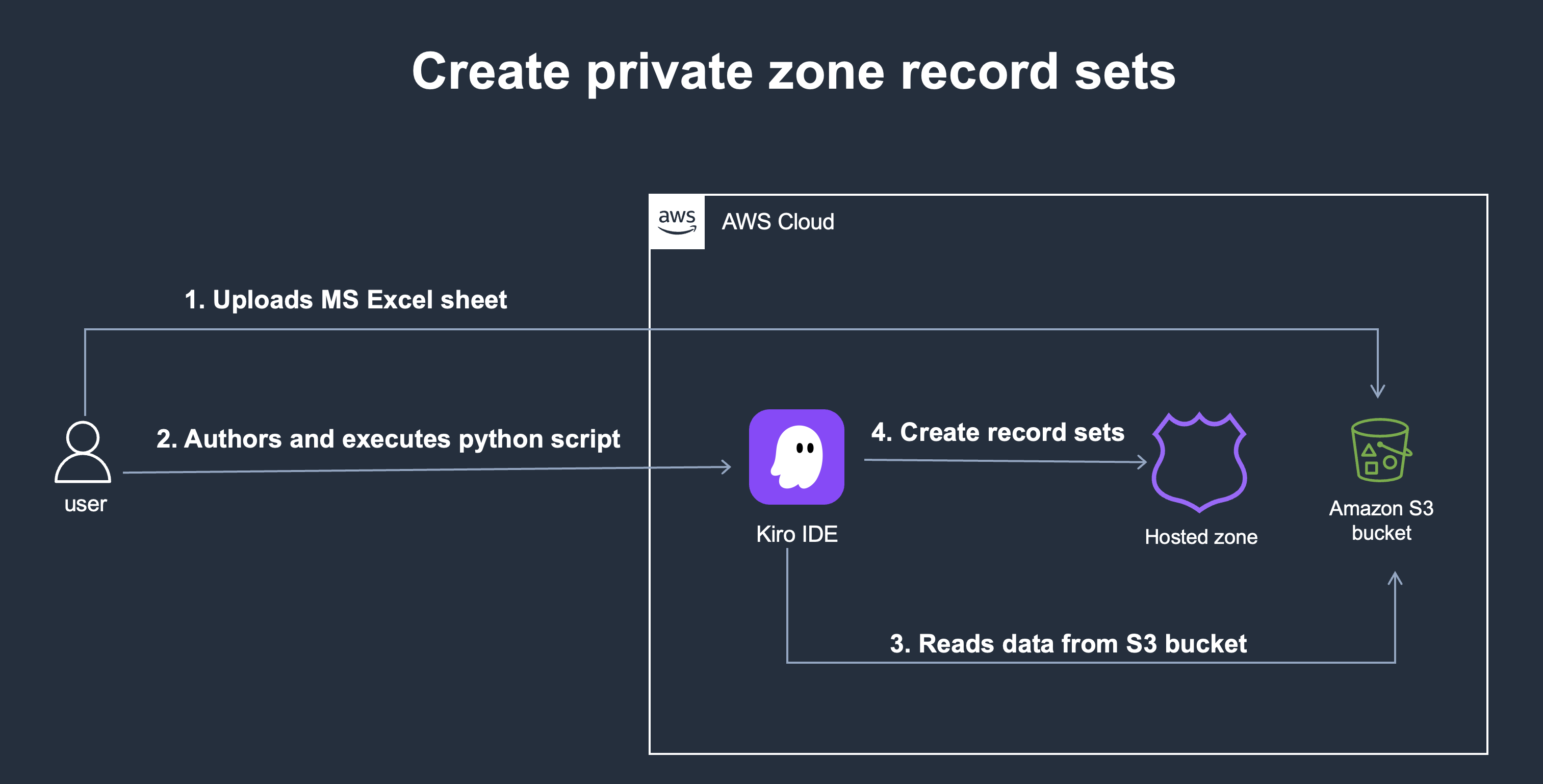
The user uploads an Excel worksheet with DNS record data to an Amazon S3 bucket.
A Python script running locally (or in an IDE such as Kiro) reads the JSON file from the Amazon S3 bucket by using Boto3.
The script processes the records and calls the Route 53
change_resource_record_setsAPI operation to create records in the hosted zone.
Tools
AWS services
Other tools
Kiro — An IDE with agentic AI capabilities, used to develop and run the Python migration script. For more information, see Kiro
. pandas — A Python data analysis library, used to convert the Excel worksheet to JSON format.
Best practices
Test with a small subset of 5–10 records before you run the script against all records to verify data formatting and correct record creation.
Use the
UPSERTaction instead ofCREATE. TheUPSERTaction creates a record if it doesn't exist or updates it if it does. This makes the script idempotent and safe to rerun.Batch your changes
to stay within the ChangeResourceRecordSetsrequest limits. When you use theUPSERTaction, eachResourceRecordelement counts twice toward the 1,000-element maximum.Validate data before insertion
. Verify that FQDNs end with a period ( .), that TTL values are positive integers, and that record types match the supported DNS record types.Back up existing records
before you make bulk changes. Export the current hosted zone records by using list_resource_record_setsto provide a rollback point.Implement retry logic with exponential backoff to handle Route 53 API rate limits. For more information, see Error retries and exponential backoff in AWS
. Follow the principle of least privilege and grant the minimum permissions required to perform a task. For more information, see Grant least privilege
and Security best practices in the AWS Identity and Access Management (IAM) documentation.
Epics
| Task | Description | Skills required | ||||||||
|---|---|---|---|---|---|---|---|---|---|---|
Create an Excel file for your records. |
Example row:
| Data engineer | ||||||||
Convert the Excel worksheet data to JSON. |
| Data engineer, Python developer | ||||||||
Upload the JSON file to an Amazon S3 bucket. |
| App developer |
| Task | Description | Skills required |
|---|---|---|
Create a hosted zone. |
You can also use an infrastructure as code (IaC) tool such as AWS CloudFormation to replace these steps with a template that creates a stack with the appropriate resources and properties. For more information, see AWS Route 53::HostedZone | Cloud architect, Network administrator, Python skills |
Read the JSON data from Amazon S3. |
| App developer, Python developer |
Clean data values and insert records. |
| App developer, Python skills |
Troubleshooting
| Issue | Solution |
|---|---|
| Add a |
| This error occurs when you try to create a record that already exists by using the |
Throttling error (rate limit exceeded) | You have exceeded five API requests per second. Implement exponential backoff with jitter. For more information, see Error retries and exponential backoff in AWS |
Records are not resolving | Verify that the VPC is associated with the hosted zone and that DNS resolution is enabled on the VPC. Both |
| The data contains non-breaking spaces ( |
Related resources
References
Creating records by importing a zone file
(Route 53 documentation) create_hosted_zone
(Boto3 documentation) change_resource_record_sets
(Boto3 documentation) Supported DNS record types
( Route 53 documentation)
Tutorials and videos
DNS design using Amazon Route 53
Additional information
For NAPTR and SRV records, the Value field in the Excel worksheet must contain all required components concatenated into a single string. Use Excel's CONCAT function to combine the individual properties (order, preference, flags, service, regexp, replacement for NAPTR; priority, weight, port, target for SRV) before exporting to JSON.
If your migration involves more than 1,000 records, split the JSON file into batches and process each batch separately to stay within Route 53 API limits. When you use the UPSERT action, each ResourceRecord element counts twice toward the 1,000-element maximum per ChangeResourceRecordSets request.
Attachments
To access additional content that is associated with this document, unzip the following file: attachment.zip