Visualize AI/ML model results using Flask and AWS Elastic Beanstalk
Chris Caudill and Durga Sury, Amazon Web Services
Summary
Visualizing output from artificial intelligence and machine learning (AI/ML) services often requires complex API calls that must be customized by your developers and engineers. This can be a drawback if your analysts want to quickly explore a new dataset.
You can enhance the accessibility of your services and provide a more interactive form of data analysis by using a web-based user interface (UI) that enables users to upload their own data and visualize the model results in a dashboard.
This pattern uses Flask
Prerequisites and limitations
Prerequisites
An active AWS account.
AWS Command Line Interface (AWS CLI), installed and configured on your local machine. For more information about this, see Configuration basics
in the AWS CLI documentation. You can also use an AWS Cloud9 integrated development environment (IDE); for more information about this, see Python tutorial for AWS Cloud9 and Previewing running applications in the AWS Cloud9 IDE in the AWS Cloud9 documentation. Notice: AWS Cloud9 is no longer available to new customers. Existing customers of AWS Cloud9 can continue to use the service as normal. Learn more
An understanding of Flask’s web application framework. For more information about Flask, see the Quickstart
in the Flask documentation. Python version 3.6 or later, installed and configured. You can install Python by following the instructions from Setting up your Python development environment
in the AWS Elastic Beanstalk documentation. Elastic Beanstalk Command Line Interface (EB CLI), installed and configured. For more information about this, see Install the EB CLI
and Configure the EB CLI from the Elastic Beanstalk documentation.
Limitations
This pattern’s Flask application is designed to work with .csv files that use a single text column and are restricted to 200 rows. The application code can be adapted to handle other file types and data volumes.
The application doesn’t consider data retention and continues to aggregate uploaded user files until they are manually deleted. You can integrate the application with Amazon Simple Storage Service (Amazon S3) for persistent object storage or use a database such as Amazon DynamoDB for serverless key-value storage.
The application only considers documents in the English language. However, you can use Amazon Comprehend to detect a document’s primary language. For more information about the supported languages for each action, see API reference
in the Amazon Comprehend documentation.
Architecture
Flask application architecture
Flask is a lightweight framework for developing web applications in Python. It is designed to combine Python’s powerful data processing with a rich web UI. The pattern’s Flask application shows you how to build a web application that enables users to upload data, sends the data to Amazon Comprehend for inference, and then visualizes the results. The application has the following structure:
static– Contains all the static files that support the web UI (for example, JavaScript, CSS, and images)templates– Contains all of the application's HTML pagesuserData– Stores uploaded user dataapplication.py– The Flask application filecomprehend_helper.py– Functions to make API calls to Amazon Comprehendconfig.py– The application configuration filerequirements.txt– The Python dependencies required by the application
The application.py script contains the web application's core functionality, which consists of four Flask routes. The following diagram shows these Flask routes.

/is the application's root and directs users to theupload.htmlpage (stored in thetemplatesdirectory)./saveFileis a route that is invoked after a user uploads a file. This route receives aPOSTrequest via an HTML form, which contains the file uploaded by the user. The file is saved in theuserDatadirectory and the route redirects users to the/dashboardroute./dashboardsends users to thedashboard.htmlpage. Within this page's HTML, it runs the JavaScript code instatic/js/core.jsthat reads data from the/dataroute and then builds visualizations for the page./datais a JSON API that presents the data to be visualized in the dashboard. This route reads the user-provided data and uses the functions incomprehend_helper.pyto send the user data to Amazon Comprehend for sentiment analysis and named entity recognition (NER). The Amazon Comprehend response is formatted and returned as a JSON object.
Deployment architecture
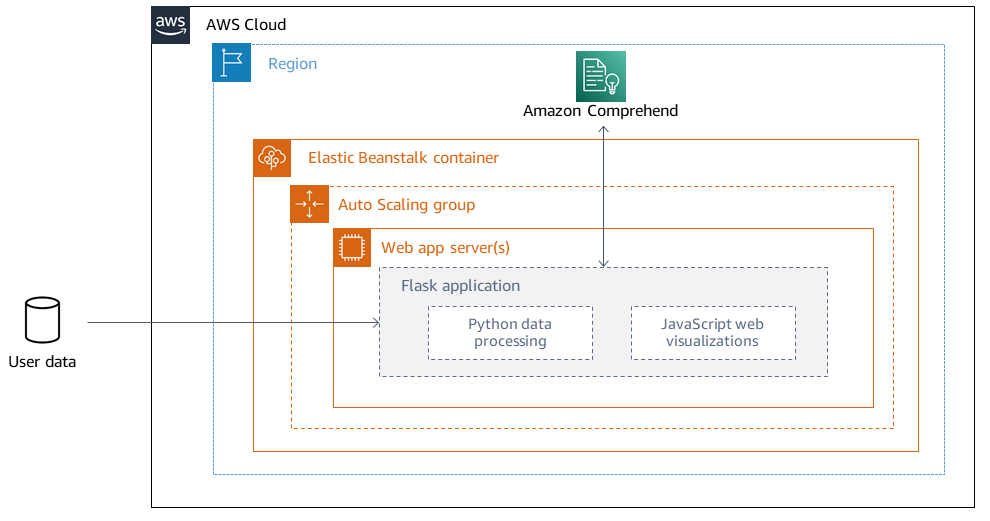
For more information about design considerations for applications deployed using Elastic Beanstalk on the AWS Cloud, see in the AWS Elastic Beanstalk documentation.
Technology stack
Amazon Comprehend
Elastic Beanstalk
Flask
Automation and scale
Elastic Beanstalk deployments are automatically set up with load balancers and auto scaling groups. For more configuration options, see Configuring Elastic Beanstalk environments
Tools
AWS Command Line Interface (AWS CLI)
is a unified tool that provides a consistent interface for interacting with all parts of AWS. Amazon Comprehend
uses natural language processing (NLP) to extract insights about the content of documents without requiring special preprocessing. AWS Elastic Beanstalk
helps you quickly deploy and manage applications in the AWS Cloud without having to learn about the infrastructure that runs those applications. Elastic Beanstalk CLI (EB CLI)
is a command line interface for AWS Elastic Beanstalk that provides interactive commands to simplify creating, updating, and monitoring environments from a local repository. The Flask
framework performs data processing and API calls using Python and offers interactive web visualization with Plotly.
Code repository
The code for this pattern is available in the GitHub Visualize AI/ML model results using Flask and AWS Elastic Beanstalk
Epics
| Task | Description | Skills required |
|---|---|---|
Clone the GitHub repository. | Pull the application code from the GitHub Visualize AI/ML model results using Flask and AWS Elastic Beanstalk
NoteMake sure that you configure your SSH keys with GitHub. | Developer |
Install the Python modules. | After you clone the repository, a new local
| Python developer |
Test the application locally. | Start the Flask server by running the following command:
This returns information about the running server. You should be able to access the application by opening a browser and visiting http://localhost:5000 NoteIf you're running the application in an AWS Cloud9 IDE, you need to replace the
You must revert this change before deployment. | Python developer |
| Task | Description | Skills required |
|---|---|---|
Launch the Elastic Beanstalk application. | To launch your project as an Elastic Beanstalk application, run the following command from your application’s root directory:
Important
Run the | Architect, Developer |
Deploy the Elastic Beanstalk environment. | Run the following command from the application's root directory:
Note
| Architect, Developer |
Authorize your deployment to use Amazon Comprehend. | Although your application might be successfully deployed, you should also provide your deployment with access to Amazon Comprehend. Attach the
Important
| Developer, Security architect |
Visit your deployed application. | After your application successfully deploys, you can visit it by running the You can also run the | Architect, Developer |
| Task | Description | Skills required |
|---|---|---|
Authorize Elastic Beanstalk to access the new model. | Make sure that Elastic Beanstalk has the required access permissions for your new model endpoint. For example, if you use an Amazon SageMaker AI endpoint, your deployment needs to have permission to invoke the endpoint. For more information about this, see InvokeEndpoint | Developer, Security architect |
Send the user data to a new model. | To change the underlying ML model in this application, you must change the following files:
| Data scientist |
Update the dashboard visualizations. | Typically, incorporating a new ML model means that visualizations must be updated to reflect the new results. These changes are made in the following files:
| Web developer |
| Task | Description | Skills required |
|---|---|---|
Update your application's requirements file. | Before sending changes to Elastic Beanstalk, update the
| Python developer |
Redeploy the Elastic Beanstalk environment. | To ensure that your application changes are reflected in your Elastic Beanstalk deployment, navigate to your application's root directory and run the following command:
This sends the most recent version of the application's code to your existing Elastic Beanstalk deployment. | Systems administrator, Architect |
Troubleshooting
| Issue | Solution |
|---|---|
| If this error occurs when you run |
| This error occurs in deployment logs because Elastic Beanstalk expects the Flask code to be named
Make sure that you replace You can also leverage Gunicorn and a Procfile. For more information about this approach, see Configuring the WSGI server with a Procfile |
| Elastic Beanstalk expects the variable that represents your Flask application to be named
|
| Use the EB CLI to specify which key pair to use or to create a key pair for your deployment’s Amazon EC2 instances. To resolve the error, run
Respond with |
I’ve updated my code and redeployed, but my deployment is not reflecting my changes. | If you’re using a Git repository with your deployment, make sure that you add and commit your changes before redeploying. |
You are previewing the Flask application from an AWS Cloud9 IDE and run into errors. | For more information about this, see Previewing running applications in the AWS Cloud9 IDE |
Related resources
Additional information
Natural language processing using Amazon Comprehend
By choosing to use Amazon Comprehend, you can detect custom entities in individual text documents by running real-time analysis or asynchronous batch jobs. Amazon Comprehend also enables you to train custom entity recognition and text classification models that can be used in real time by creating an endpoint.
This pattern uses asynchronous batch jobs to detect sentiments and entities from an input file that contains multiple documents. The sample application provided by this pattern is designed for users to upload a .csv file containing a single column with one text document per row. The comprehend_helper.py file in the GitHub Visualize AI/ML model results using Flask and AWS Elastic Beanstalk
BatchDetectEntities
Amazon Comprehend inspects the text of a batch of documents for named entities and returns the detected entity, location, type of entity‘quantity’ entity type and set a threshold score for the detected entity (for example, 0.75). We recommend that you explore the results for your specific use case before choosing a threshold value. For more information about this, see BatchDetectEntities
BatchDetectSentiment
Amazon Comprehend inspects a batch of incoming documents and returns the prevailing sentiment for each document (POSITIVE, NEUTRAL, MIXED, or NEGATIVE). A maximum of 25 documents can be sent in one API call, with each document smaller than 5,000 bytes in size. Analyzing the sentiment is straightforward and you choose the sentiment with the highest score to be displayed in the final results. For more information about this, see BatchDetectSentiment
Flask configuration handling
Flask servers use a series of configuration variables
In this pattern, the configuration is defined in config.py and inherited within application.py.
config.pycontains the configuration variables that are set up on the application's startup. In this application, aDEBUGvariable is defined to tell the application to run the server in debug mode. Note
Debug mode should not be used when running an application in a production environment.
UPLOAD_FOLDERis a custom variable that is defined to be referenced later in the application and inform it where uploaded user data should be stored.application.pyinitiates the Flask application and inherits the configuration settings defined inconfig.py. This is performed by the following code:
application = Flask(__name__)
application.config.from_pyfile('config.py')