Services or capabilities described in AWS documentation might vary by Region. To see the differences applicable to the AWS European Sovereign Cloud Region, see the AWS European Sovereign Cloud User Guide.Connecting Lake Formation with IAM Identity Center
Before you can use IAM Identity Center to manage identities to grant access to Data Catalog resources using Lake Formation,
you must complete the following steps. You can create the IAM Identity Center integration using the Lake Formation console or AWS CLI.
- AWS Management Console
-
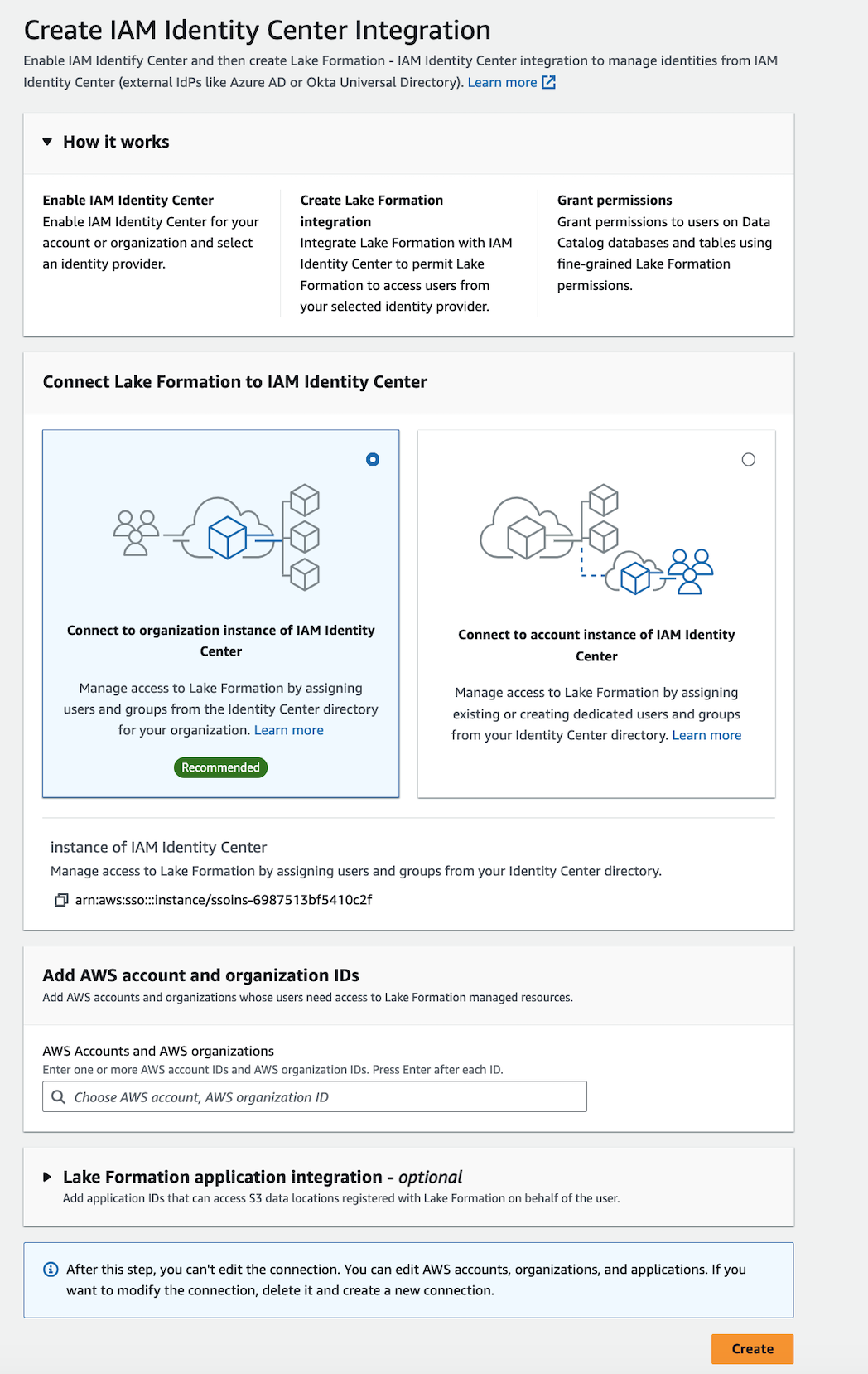
To connect Lake Formation with IAM Identity Center
Sign in to the AWS Management Console, and open the Lake Formation console at https://eusc-de-east-1.console.amazonaws-eusc.eu/lakeformation/.
In the left navigation pane, select IAM Identity Center integration.
(Optional) Enter one or more valid AWS account IDs, organization IDs, and/or organizational
unit IDs to allow external accounts to access the Data Catalog resources.
When IAM Identity Center users or groups try to access Lake Formation managed Data Catalog
resources, Lake Formation assumes an IAM role to authorize metadata access.
If the IAM role belongs to an external account that does not have
an AWS Glue resource policy and an AWS RAM resource share, the IAM Identity Center
users and groups won't be able to access the resource even if
they've Lake Formation permissions.
Lake Formation uses the AWS Resource Access Manager (AWS RAM) service to share the resource with external accounts and organizations. AWS RAM sends an invitation to the grantee account to accept or reject the resource share.
For more information, see Accepting a resource share invitation from AWS RAM.
Lake Formation permits IAM roles from external accounts to act as carrier roles on behalf of IAM Identity Center users and groups for accessing Data Catalog
resources, but permissions can only be granted on Data Catalog
resources within the owning account. If you try to grant
permissions to IAM Identity Center users and groups on Data Catalog resources in an external account, Lake Formation throws the
following error - "Cross-account grants are not supported for
the principal."
(Optional) On the Create Lake Formation integration screen, specify the
ARNs of third-party applications that can access data in Amazon S3 locations
registered with Lake Formation. Lake Formation vends scoped-down temporary credentials in the form of AWS STS tokens to registered Amazon S3 locations based on the effective permissions, so that authorized applications can access data on behalf of users.
-
(Optional) On the Create Lake Formation integration screen, check mark the Amazon Redshift
Connect checkbox in Trusted Identity Propagation to enable Amazon Redshift Federated Permissions
discovery via IDC. Lake Formation propagates identity to downstream based on the effective
permissions, so that authorized applications can access data on behalf of users.
Select Submit.
After the Lake Formation administrator finishes the steps and creates the
integration, the IAM Identity Center properties appear in the Lake Formation console.
Completing these tasks makes Lake Formation an IAM Identity Center enabled application. The
properties in the console include the integration status. The
integration status says Success when it's completed.
This status indicates if IAM Identity Center configuration is completed.
- AWS CLI
-
-
The following example shows how to create Lake Formation
integration with IAM Identity Center. You can also specify the Status
(ENABLED, DISABLED) of the
applications.
aws lakeformation create-lake-formation-identity-center-configuration \
    --catalog-id <123456789012> \
    --instance-arn <arn:aws:sso:::instance/ssoins-112111f12ca1122p> \
    --share-recipients '[{"DataLakePrincipalIdentifier": "<123456789012>"},
                        {"DataLakePrincipalIdentifier": "<555555555555>"}]' \
    --external-filtering '{"AuthorizedTargets": ["<app arn1>", "<app arn2>"], "Status": "ENABLED"}'
-
The following example shows how to view a Lake Formation
integration with IAM Identity Center.
aws lakeformation describe-lake-formation-identity-center-configuration
 --catalog-id <123456789012>
-
The following example shows how to enable Redshift:Connect Authorization. Authorization can be ENABLED or DISABLED.
aws lakeformation  create-lake-formation-identity-center-configuration \
--instance-arn <arn:aws:sso:::instance/ssoins-112111f12ca1122p> \
--service-integrations '[{
  "Redshift": [{
    "RedshiftConnect": {
      "Authorization": "ENABLED"
    }
  }]
}]'
-
Use the describe-lake-formation-identity-center-configuration command to
describe the lake formation identity center application.
Redshift:Connect service integration is essential for cross-service and
cross-cluster IdC identity propagation:
aws lakeformation describe-lake-formation-identity-center-configuration --catalog-id <123456789012>
Response:
{
    "CatalogId": "CATALOG ID",
    "InstanceArn": "INSTANCE ARN",
    "ApplicationArn": "APPLICATION ARN",
    "ShareRecipients": [],
    "ServiceIntegrations": [
        {
            "Redshift": [
                {
                    "RedshiftConnect": {
                        "Authorization": "ENABLED"
                    }
                }
            ]
        }
    ]
}
Using IAM Identity Center across multiple AWS Regions
Lake Formation supports IAM Identity Center in multiple AWS Regions. You can extend IAM Identity Center from your
primary AWS Region to additional Regions for improved performance through proximity
to users and reliability. When a new Region is added in IAM Identity Center, you can create Lake Formation
Identity Center applications in the new Region without replicating identities from
the primary Region. For more details to get started with IAM Identity Center in multiple Regions,
see Multi-Region
IAM Identity Center in the IAM Identity Center User Guide.