Configuring Automations to monitor CloudWatch Alarms
You can configure your Automation runbook executions to monitor CloudWatch alarms. If a
specified alarm enters ALARM state, Automation stops the execution. For
executions using rate control mode or running across multiple accounts, Automation cancels
all pending executions. If you define onCancel steps in your runbook, those
steps run before the execution ends. This prevents runbooks from continuing when monitored
resources are unhealthy.
Before you begin
Complete these prerequisites before configuring CloudWatch alarm monitoring:
-
Create a CloudWatch alarm – Create an alarm that monitors resources affected by your Automation execution. For more information, see Using Amazon CloudWatch alarms.
-
Configure execution identity permissions – The execution identity used by Automation must have the following permissions for CloudWatch alarm monitoring to work correctly:
-
cloudwatch:DescribeAlarms– Required to monitor alarm states. -
ssm:StopAutomationExecution– Required to stop the execution when an alarm activates.
The execution identity is determined by the IAM role ARN specified in the
assumeRolefield of your Automation runbook. If noassumeRolevalue is specified, the runbook executes using the identity of the IAM principal that calledStartAutomationExecution. -
The following example shows a minimal IAM policy that grants the required permissions for CloudWatch alarm monitoring:
{
    "Version": "2012-10-17",
    "Statement": [
        {
            "Effect": "Allow",
            "Action": [
                "cloudwatch:DescribeAlarms",
                "ssm:StopAutomationExecution"
            ],
            "Resource": "*"
        }
    ]
}
Configuring alarm monitoring (console)
Use the following procedure to configure CloudWatch alarm monitoring when starting an automation from the Systems Manager console.
To configure alarm monitoring
Open the AWS Systems Manager console at https://eusc-de-east-1.console.amazonaws-eusc.eu/systems-manager/
-
In the navigation pane, choose Automation.
-
Choose Execute automation.
-
Select a runbook and configure the input parameters for your execution.
-
In the CloudWatch alarm section, choose an alarm to monitor during the execution.
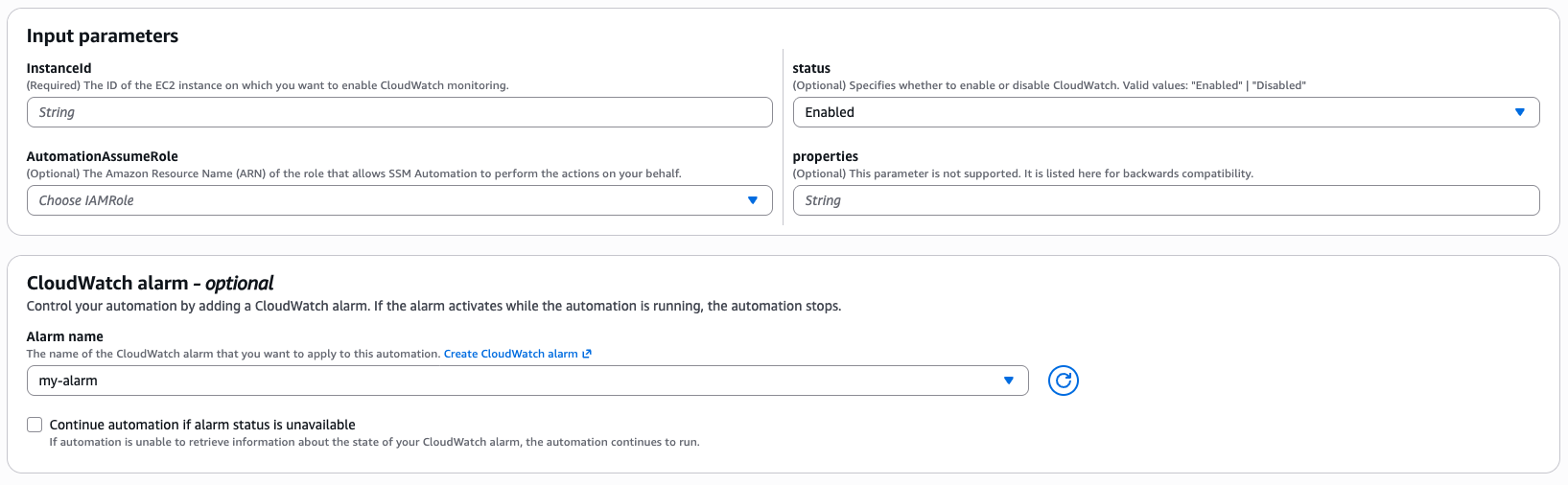
-
(Optional) Toggle Continue automation if alarm state is unavailable to control behavior when Automation cannot retrieve the alarm state. When enabled, the execution continues even if the alarm state cannot be determined. When disabled (default), the execution stops if the alarm state cannot be retrieved.
-
Choose Execute.
Configuring alarm monitoring (AWS CLI)
Use the --alarm-configuration parameter with the aws ssm
start-automation-execution command to specify CloudWatch alarms to
monitor.
The --alarm-configuration parameter accepts a JSON structure with the
following fields:
-
Alarms(required) – An alarm object with aNamefield that identifies the CloudWatch alarm to monitor. -
IgnorePollAlarmFailure(optional, boolean) – Controls behavior when Automation cannot retrieve the alarm state. Set tofalse(default) to stop the execution if alarm state cannot be determined, ortrueto continue the execution regardless.
The following example starts an automation that monitors a CloudWatch alarm named
my-alarm. Because IgnorePollAlarmFailure is set to
false, the automation stops if it cannot retrieve the alarm
state:
aws ssm start-automation-execution \ --document-name "AWS-RestartEC2Instance" \ --parameters '{"InstanceId":["i-02573cafcfEXAMPLE"]}' \ --alarm-configuration '{"IgnorePollAlarmFailure":false,"Alarms":[{"Name":"my-alarm"}]}'
Cross-account and cross-region alarm monitoring
For automations running across multiple Accounts and Regions, you can configure alarm
monitoring per target location using the TargetLocationAlarmConfiguration
field within TargetLocations. The execution role in each target account (for
example, AWS-SystemsManager-AutomationExecutionRole) must have
cloudwatch:DescribeAlarms and
ssm:StopAutomationExecution permissions.
For more information about setting up cross-account roles, see Setting up management account permissions for multi-Region and multi-account automation.