Configure TIP for a SAML provider
Use this page to configure TIP for a new or existing SAML provider. First, complete the prerequisites and planning steps in Before you configure TIP.
Configure TIP when creating a SAML provider
AWS Management Console
To configure TIP when creating a SAML provider (console)
-
Open the IAM console and choose Identity providers.
-
Choose Add provider, and then choose SAML for Provider type.
-
Enter a Provider name and upload the SAML Metadata document.
-
In Trusted identity propagation - optional, Configure trusted identity propagation is selected by default. Keep it selected to configure TIP, or clear it to create the provider without TIP.
-
Under Start from a template, choose one way to begin:
-
Choose an available identity provider template to start with suggested mappings for fields commonly provided by that identity provider. You can edit or replace any suggested mapping.
-
Choose Custom to configure the mappings yourself.
-
-
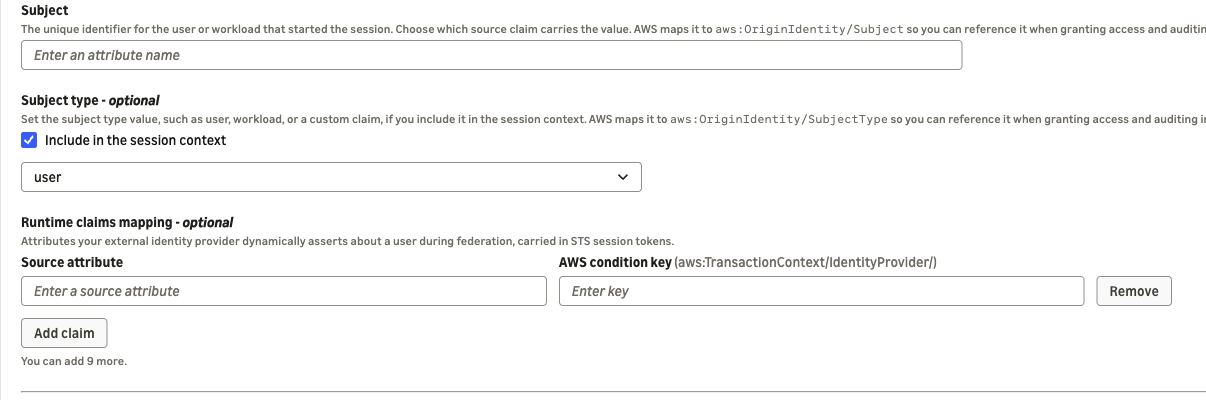
For Subject, choose one assertion source that identifies the human user or workload. The available sources depend on the template selected in the previous step:
-
From the template-provided sources, choose the field that best represents the human user or workload. We recommend Subject/NameID (sub), which uses the SAML Subject.
-
Choose Custom SAML attribute to use another SAML attribute. In Enter an attribute name, enter the exact attribute name from the SAML assertion. The attribute must contain one value.
The selected source must be present in the SAML assertion. If it is absent, the federation API request fails. TIP attaches the selected value to the
aws:OriginIdentity/Subjectkey.The IAM console requires a Subject source. If you submit the form with the Subject empty, the console displays Subject is required. and does not save the configuration.
-
-
Under Subject type - optional, keep Include in the session context selected to attach a Subject type, or clear it to omit the Subject type. If selected, choose how to identify the originator as a human user or workload. TIP attaches this value to the
aws:OriginIdentity/SubjectTypekey. AWS services can use this key for access control decisions and auditability. There are two ways to configure the value:-
To apply a fixed value to every federated session, choose user or workload.
-
To derive the value from the SAML assertion, choose Custom attribute from your SAML assertion. In Enter a claim key, enter a field whose value is
userorworkload.
If you choose the custom option but leave Enter a claim key empty, the console displays Subject type is required. and does not save the configuration.
-
-
To propagate additional context about the federation session, you can configure optional runtime-claim mappings. Under Runtime claims mapping - optional, choose Add claim for each SAML attribute you want to carry in the session. Each attribute must contain one value. You can add up to 10 mappings:
-
For Source attribute, choose a listed source or Custom SAML attribute.
-
For AWS condition key (aws:TransactionContext/IdentityProvider/), enter the target-key suffix in Enter key, or leave it empty to use the source attribute name as the suffix.
-
To delete an unsaved mapping, choose Remove.
-
If a row has no source attribute when you submit the form, the console displays Source attribute is required. and does not save the configuration.
Select identity context appropriate for your authorization and audit requirements. Before saving the mappings, review Logging TIP activity with AWS CloudTrail to understand how selected TIP context appears in CloudTrail events, which customer account receives each event, and how governance controls prevent the context from being logged to unapproved destinations.
Before saving, confirm that each configured source value, source key, and target-key suffix meets the source-value requirements and key requirements.
-
-
Under Support group-based access for users, select Allow granting permissions to groups if your use case requires access based on a human user's group membership. The console hides this section when Subject type is fixed to
workload.Complete the applicable instance-selection or instance-creation path in Configure group-based access for TIP.

-
Complete any optional settings, and then choose Add provider to create the provider and save its TIP configuration.
For standard SAML provider fields and optional SAML encryption settings, see Create a SAML identity provider in IAM.
Create using the AWS CLI or AWS SDK
To create a SAML provider with TIP programmatically, call the public CreateSAMLProvider API. Use aws iam create-saml-provider with the AWS CLI or create_saml_provider
The request includes the existing Name and SAMLMetadataDocument parameters for the SAML provider. To configure TIP, include the ContextProvider parameter. If you need group-based access, also provide the ARN of the IAM Identity Center instance through the optional IdentityCenterInstanceArn parameter.
AWS CLI and SDK requests do not apply the console's identity provider templates or defaults, so you must define the TIP mappings explicitly. ContextProvider is the TIP mapping configuration for the IAM identity provider. When AssumeRoleWithSAML succeeds, AWS STS uses these mappings to attach selected fields and attributes from the verified SAML assertion to the resulting role session.
ContextProvider contains the following settings:
-
Subject:
SubjectSourceKeyidentifies the SAML assertion field whose value becomesaws:OriginIdentity/Subject. This setting is required. The example usessub, the API value forSubject/NameID. -
Subject type:
SubjectTypeValuesupplies a fixed value, orSubjectTypeSourceKeyidentifies a SAML assertion source field or attribute that supplies the value. This setting is optional. Use one member, not both. The value must beuserorworkload. -
Runtime claims:
KeyDefinitionListoptionally maps additional assertion values. In each mapping,SourceKeyidentifies the source field or attribute andTargetKeyis appended toaws:TransactionContext/IdentityProvider/to form the condition key.
Some source-key values select standard SAML assertion fields rather than custom attributes. The following table shows these reserved values and the assertion source that each value selects.
| Source-key value | SAML assertion source |
|---|---|
sub | Subject/NameID value |
sub_type | Subject/NameID Format URI |
iss | Assertion Issuer element |
iat | Assertion IssueInstant |
nbf | Conditions NotBefore |
exp | Conditions NotOnOrAfter |
acr | AuthnContextClassRef URI |
auth_time | AuthnStatement AuthnInstant |
These reserved source-key values are case-sensitive. For example, sub selects the SAML Subject/NameID, while SUB selects a custom SAML attribute named SUB.
These source-key values are reserved. If the SAML assertion contains an AttributeStatement attribute with one of these names, AWS ignores that attribute and uses the corresponding standard assertion field. Use a different name for a custom SAML attribute.
The sub_type source contains the Subject/NameID Format URI. It does not contain the TIP Subject type value, which must be user or workload.
Every configured source key and target-key suffix must meet the key requirements.
Each configured source must contain one valid value. For the supported value types, length, characters, and failure behavior, see Source-value requirements.
Follow these steps to create the SAML provider and save its TIP configuration using the AWS CLI or AWS SDK:
To configure TIP when creating a SAML provider (AWS CLI or AWS SDK for Python)
-
Define the TIP mappings. The following example maps
Subject/NameIDto the Subject, derives the Subject type from theprincipalTypeassertion attribute, and maps the exampledepartmentruntime attribute.{ "SubjectSourceKey": "sub", "SubjectTypeSourceKey": "principalType", "KeyDefinitionList": [ { "SourceKey": "department", "TargetKey": "department" } ] }To apply one Subject type to every session, replace
SubjectTypeSourceKeywithSubjectTypeValueset touserorworkload. Do not include both members.Replace
principalTypeanddepartmentwith attributes that your identity provider includes in its SAML assertions. The Subject type source must resolve touserorworkload. -
Prepare group-based access, if needed. Obtain the applicable IAM Identity Center instance ARN by following Choose the IAM Identity Center setup path.
Pass
IdentityCenterInstanceArnat the top level of the sameCreateSAMLProviderrequest. This parameter associates the SAML provider with the IAM Identity Center instance used for group resolution. -
Create the provider. Use either the AWS CLI or the AWS SDK for Python.
AWS CLI
Save the JSON from step 1 as
context-provider.json. This example includes group-based access. If you do not need it, omitIDC_INSTANCE_ARNand--identity-center-instance-arn.IDC_INSTANCE_ARN="arn:aws:sso:::instance/ssoins-0123456789abcdef" SAML_PROVIDER_ARN=$(aws iam create-saml-provider \ --name ExampleProvider \ --saml-metadata-document file://saml-metadata.xml \ --context-provider file://context-provider.json \ --identity-center-instance-arn "$IDC_INSTANCE_ARN" \ --query 'SAMLProviderArn' \ --output text) printf '%s\n' "$SAML_PROVIDER_ARN"A successful request prints:
arn:aws:iam::123456789012:saml-provider/ExampleProviderAWS SDK for Python (Boto3)
Define the same
ContextProvidermappings as a Python dictionary. This example includes group-based access. If you do not need it, omitIdentityCenterInstanceArn.from pathlib import Path import boto3 iam = boto3.client("iam") context_provider = { "SubjectSourceKey": "sub", "SubjectTypeSourceKey": "principalType", "KeyDefinitionList": [ { "SourceKey": "department", "TargetKey": "department", } ], } metadata = Path("saml-metadata.xml").read_text(encoding="utf-8") response = iam.create_saml_provider( Name="ExampleProvider", SAMLMetadataDocument=metadata, ContextProvider=context_provider, IdentityCenterInstanceArn=( "arn:aws:sso:::instance/ssoins-0123456789abcdef" ), ) saml_provider_arn = response["SAMLProviderArn"] print({"SAMLProviderArn": saml_provider_arn})A successful response includes:
{'SAMLProviderArn': 'arn:aws:iam::123456789012:saml-provider/ExampleProvider'} -
Retain the provider ARN. The
SAMLProviderArnresponse element contains the ARN of the new provider. The create API operation does not return the saved TIP configuration or TIP status. -
Verify the TIP configuration. Follow the verification procedure.
Add TIP to an existing SAML provider
AWS Management Console
To add TIP to an existing SAML provider (console)
In the IAM console, choose Identity providers, and then choose the SAML provider for which you want to enable TIP.
Choose the Identity propagation tab. Check Propagation status. A value of Not configured means that you can continue with this procedure. A value of Configured means that TIP is already configured for the provider.
Choose Configure.
Configure the template, Subject, optional Subject type, runtime claims, and optional group-based access as described under Configure TIP when creating a SAML provider, beginning with Start from a template. The console hides Support group-based access for users when Subject type is fixed to
workload.Choose Configure to save the configuration.
Add TIP using the AWS CLI or AWS SDK
To add TIP to an existing SAML provider, call the public UpdateSAMLProvider API operation. Every API request includes the required SAMLProviderArn request parameter, which identifies the provider to update.
IAM does not accept ContextProvider and IdentityCenterInstanceArn in the same UpdateSAMLProvider request. Submit them in separate requests. The following sequence saves the TIP mappings first. Wait for the ContextProvider request to succeed, and then submit a second request with IdentityCenterInstanceArn to configure group-based access.
Prepare the complete ContextProvider configuration described in the creation procedure.
AWS CLI
Use the aws iam update-saml-provider AWS CLI command. Save the ContextProvider configuration as context-provider.json.
aws iam update-saml-provider \ --saml-provider-arn "$SAML_PROVIDER_ARN" \ --context-provider file://context-provider.json
If you require group-based access, wait for the first command to succeed, and then run:
aws iam update-saml-provider \ --saml-provider-arn "$SAML_PROVIDER_ARN" \ --identity-center-instance-arn "$IDC_INSTANCE_ARN"
AWS SDK for Python (Boto3)
Use the update_saml_providerContextProvider configuration in the context_provider dictionary.
import boto3 iam = boto3.client("iam") saml_provider_arn = "arn:aws:iam::123456789012:saml-provider/ExampleProvider" context_provider = { "SubjectSourceKey": "sub", "SubjectTypeSourceKey": "principalType", "KeyDefinitionList": [ { "SourceKey": "department", "TargetKey": "department", } ], } iam.update_saml_provider( SAMLProviderArn=saml_provider_arn, ContextProvider=context_provider, ) # Run this second API request only after the first request succeeds. iam.update_saml_provider( SAMLProviderArn=saml_provider_arn, IdentityCenterInstanceArn=( "arn:aws:sso:::instance/ssoins-0123456789abcdef" ), )
Omit the second API request when group-based access is not required. Then verify the saved TIP configuration.
Change TIP configuration for a SAML provider
Use this section to change the saved Subject, optional Subject type, runtime-claim mappings, or group-based-access configuration for a SAML provider.
AWS Management Console
To change TIP configuration for a SAML provider (console)
In the IAM console, choose Identity providers, and then choose the SAML provider whose TIP configuration you want to change.
Choose the Identity propagation tab and verify that Propagation status is Configured. A value of Not configured means that TIP is not configured for the provider.
Choose Edit.
Update the saved Subject source, optional Subject type, or runtime-claim mappings. The edit flow displays the saved mappings instead of applying an identity provider template.
To change group-based access or the associated IAM Identity Center instance, follow Change or remove group-based access. The console hides Support group-based access for users when Subject type is fixed to
workload.Choose Save changes.
Change using the UpdateSAMLProvider API
To change TIP programmatically, call the public UpdateSAMLProvider API operation. Every API request must include the required SAMLProviderArn request parameter, which identifies the provider to update.
The request parameters fall into two categories. The following table shows the parameters that you can submit together. You cannot combine parameters from different rows.
| What the API request updates | Request parameters that can be submitted together |
|---|---|
| SAML provider settings, encryption, and group-based access | SAMLMetadataDocument, AssertionEncryptionMode, AddPrivateKey, RemovePrivateKey, and either IdentityCenterInstanceArn or RemoveIdentityCenterInstance |
| TIP mappings | Either ContextProvider or RemoveContextProvider |
An API request cannot include both ContextProvider and RemoveContextProvider. IAM returns ValidationError for that combination.
IAM rejects an API request that combines parameters from different rows with InvalidInput. A single UpdateSAMLProvider request can change the context provider or the SAML provider settings, but not both. Wait for each API request to succeed before submitting the next request.
IdentityCenterInstanceArn requires the provider to have a saved ContextProvider. IAM rejects the association request if TIP is not configured. RemoveIdentityCenterInstance does not require an existing association and is accepted when no association exists.
Example: Change TIP mappings with related SAML provider settings
The following example demonstrates this requirement by changing the TIP mappings, SAML metadata document, and associated IAM Identity Center instance through two API requests. First, it saves the TIP mappings through the ContextProvider request parameter. After that API request succeeds, it submits the SAMLMetadataDocument and IdentityCenterInstanceArn request parameters together. If your workflow changes only TIP mappings, submit only the first API request.
Before submitting the TIP mapping API request, prepare the complete ContextProvider configuration that you want to save.
AWS CLI
Use the aws iam update-saml-provider AWS CLI command. Save the complete ContextProvider configuration as context-provider.json.
NEW_IDC_INSTANCE_ARN="arn:aws:sso:::instance/ssoins-0123456789abcdef" # First, change the TIP mappings. aws iam update-saml-provider \ --saml-provider-arn "$SAML_PROVIDER_ARN" \ --context-provider file://context-provider.json # After the TIP mapping request succeeds, change the SAML metadata # and associate the IAM Identity Center instance. aws iam update-saml-provider \ --saml-provider-arn "$SAML_PROVIDER_ARN" \ --saml-metadata-document file://saml-metadata.xml \ --identity-center-instance-arn "$NEW_IDC_INSTANCE_ARN"
AWS SDK for Python (Boto3)
Use the update_saml_providerContextProvider configuration in the context_provider dictionary.
from pathlib import Path import boto3 iam = boto3.client("iam") saml_provider_arn = "arn:aws:iam::123456789012:saml-provider/ExampleProvider" new_instance_arn = ( "arn:aws:sso:::instance/ssoins-0123456789abcdef" ) context_provider = { "SubjectSourceKey": "sub", "SubjectTypeSourceKey": "principalType", "KeyDefinitionList": [ { "SourceKey": "department", "TargetKey": "department", } ], } metadata = Path("saml-metadata.xml").read_text(encoding="utf-8") # First, change the TIP mappings. iam.update_saml_provider( SAMLProviderArn=saml_provider_arn, ContextProvider=context_provider, ) # After the TIP mapping request succeeds, change the SAML metadata # and associate the IAM Identity Center instance. iam.update_saml_provider( SAMLProviderArn=saml_provider_arn, SAMLMetadataDocument=metadata, IdentityCenterInstanceArn=new_instance_arn, )
For standard SAML metadata requirements, see Create a SAML identity provider in IAM.
If you remove group-based access while changing TIP mappings
If the workflow removes group-based access instead of associating an IAM Identity Center instance, reverse the order. First follow Remove group-based access to submit the RemoveIdentityCenterInstance Boolean request parameter set to true. You can include the SAMLMetadataDocument request parameter in the same API request. After that API request succeeds, submit the revised ContextProvider request parameter.
This order removes group-based access before changing the TIP mappings.
After all applicable API requests succeed, verify the saved TIP configuration.
Each submitted ContextProvider replaces the complete saved ContextProvider structure. Include the Subject, optional Subject type, and every runtime-claim mapping that you want to retain. IAM removes optional members and mappings that are omitted from the submitted structure.
Verify the TIP configuration
Creating or updating a SAML provider returns the provider ARN, but it does not return the saved TIP mappings or enabled status. Verify that TIP is enabled and that IAM saved the intended ContextProvider configuration. You can verify these results in the IAM console or programmatically by using the GetSAMLProvider and ListSAMLProviders API operations.
AWS Management Console
To verify the TIP configuration (console)
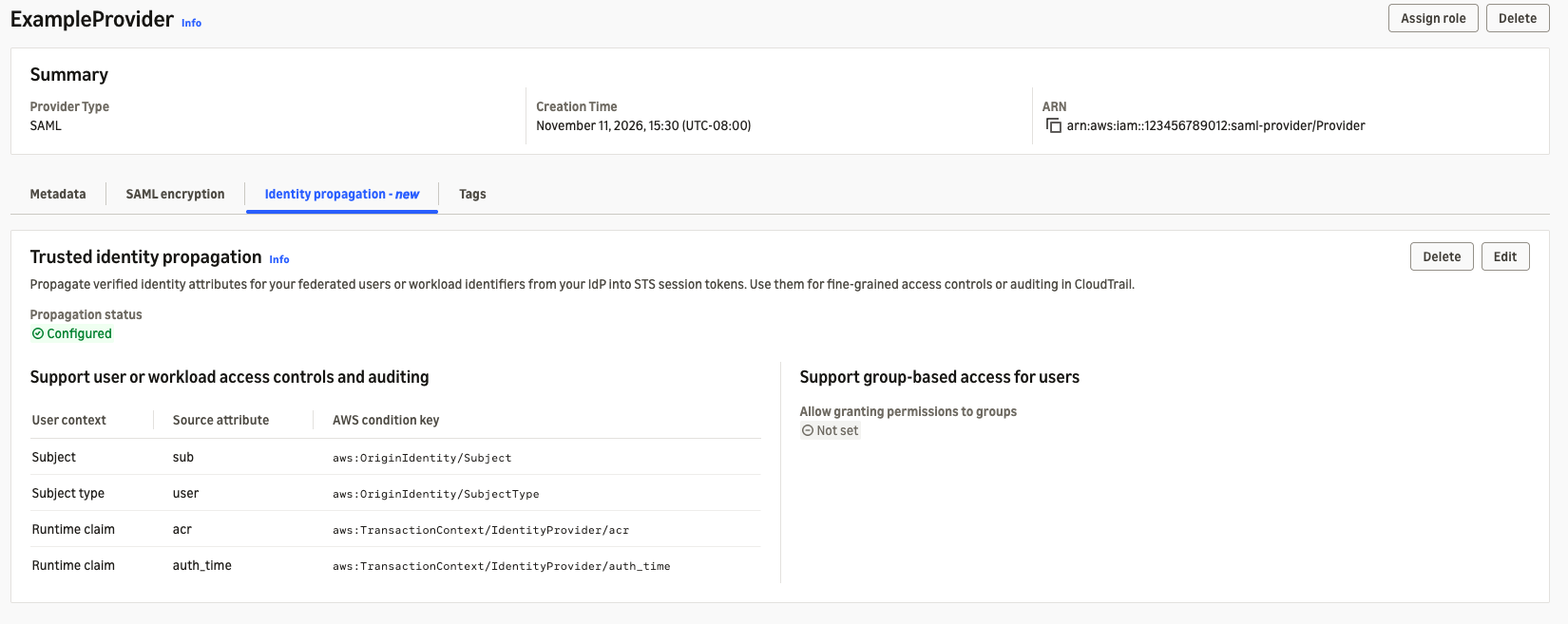
In the IAM console, choose Identity providers, choose the SAML provider, and then choose Identity propagation.
Check Propagation status. The expected value is Configured. A value of Not configured means that TIP is not configured.
In Support user or workload access controls and auditing, compare the displayed Subject source, optional Subject type, and each runtime-claim source and target with the values that you saved.
If a TIP value is missing or different, choose Edit, correct the configuration, save it, and repeat these checks.
If you configured group-based access, confirm that Connected IAM Identity Center instance shows the intended instance. Then follow Verify group-based access.
AWS CLI
First, use the aws iam list-saml-providers AWS CLI command to confirm that TIP is enabled:
aws iam list-saml-providers \ --query "SAMLProviderList[?Arn=='${SAML_PROVIDER_ARN}'].{TIPEnabled:IsTrustedIdentityPropagationEnabled}" \ --output json
The query displays the IsTrustedIdentityPropagationEnabled response element using the shorter output label TIPEnabled. An enabled provider returns:
[
{
"TIPEnabled": true
}
]A value of false means that the provider exists but TIP is disabled. An empty array ([]) means that no provider matched SAML_PROVIDER_ARN.
Next, use the aws iam get-saml-provider AWS CLI command to retrieve the saved ContextProvider response element without returning the complete SAML metadata document:
aws iam get-saml-provider \ --saml-provider-arn "$SAML_PROVIDER_ARN" \ --query 'ContextProvider' \ --output json
For the example created earlier, the expected response is:
{
  "SubjectSourceKey": "sub",
  "SubjectTypeSourceKey": "principalType",
  "KeyDefinitionList": [
    {
      "SourceKey": "department",
      "TargetKey": "department"
    }
  ]
}Use the response to verify the saved configuration:
SubjectSourceKeymust equalsub.SubjectTypeSourceKeymust equalprincipalType.KeyDefinitionListmust contain thedepartmentsource-to-target mapping from the request.
A missing or different member means that the saved TIP configuration does not match the request.
If you configured group-based access, also follow Verify group-based access.
AWS SDK for Python (Boto3)
Use the get_saml_providerlist_saml_providers
import boto3


iam = boto3.client("iam")
saml_provider_arn = "arn:aws:iam::123456789012:saml-provider/ExampleProvider"

saved = iam.get_saml_provider(SAMLProviderArn=saml_provider_arn)
provider = next(
    (
        item
        for item in iam.list_saml_providers()["SAMLProviderList"]
        if item["Arn"] == saml_provider_arn
    ),
    {},
)

result = {
    "ContextProvider": saved.get("ContextProvider"),
    "TIPEnabled": provider.get("IsTrustedIdentityPropagationEnabled"),
}
print(result)
For the example created earlier, the expected output is:
{'ContextProvider': {'SubjectSourceKey': 'sub', 'SubjectTypeSourceKey': 'principalType', 'KeyDefinitionList': [{'SourceKey': 'department', 'TargetKey': 'department'}]}, 'TIPEnabled': True}ContextProvider must match the Subject, optional Subject type, and runtime-claim mappings in the request. TIPEnabled must be True. A ContextProvider value of None means that the provider has no saved TIP mappings. A TIPEnabled value of False means that the provider exists but TIP is disabled. A TIPEnabled value of None means that no provider matched the supplied ARN. A missing or different value means that the saved TIP configuration does not match the request.
If you configured group-based access, also follow Verify group-based access.
Remove TIP from a SAML provider
Removing TIP does not delete the SAML provider.
AWS Management Console
To remove TIP from a SAML provider (console)
In the IAM console, choose Identity providers, and then choose the SAML provider from which you want to remove TIP.
Choose the Identity propagation tab and verify that Propagation status is Configured.
Choose Delete.
-
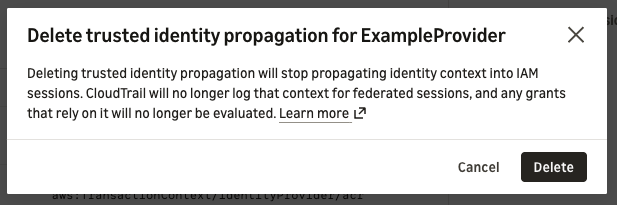
Review the effects of deleting TIP, and then choose Delete.
Return to the Identity propagation tab. The expected Propagation status is Not configured. A value of Configured means that TIP remains configured.
Remove using the UpdateSAMLProvider API
To remove TIP programmatically, call the public UpdateSAMLProvider API operation. Every API request must include the required SAMLProviderArn request parameter.
If group-based access is configured, first submit an API request with the RemoveIdentityCenterInstance Boolean request parameter set to true. After that API request succeeds, submit a second API request with the RemoveContextProvider Boolean request parameter set to true. If group-based access is not configured, submit only the RemoveContextProvider API request.
IAM accepts RemoveIdentityCenterInstance when no association exists and clears any stored association ARNs. IAM also accepts RemoveContextProvider as a no-op when the provider has no saved ContextProvider. If an IAM Identity Center association remains, IAM rejects RemoveContextProvider with InvalidInput: Remove the Identity Center instance before removing the context provider.
AWS CLI
Use the aws iam update-saml-provider AWS CLI command.
To remove TIP from a SAML provider (AWS CLI)
-
If group-based access is configured, run:
aws iam update-saml-provider \ --saml-provider-arn "$SAML_PROVIDER_ARN" \ --remove-identity-center-instance -
After the first command succeeds, remove the TIP mappings:
aws iam update-saml-provider \
    --saml-provider-arn "$SAML_PROVIDER_ARN" \
    --remove-context-provider
AWS SDK for Python (Boto3)
Use the update_saml_provider
import boto3


iam = boto3.client("iam")
saml_provider_arn = "arn:aws:iam::123456789012:saml-provider/ExampleProvider"

# Run this API request only when group-based access is configured.
iam.update_saml_provider(
    SAMLProviderArn=saml_provider_arn,
    RemoveIdentityCenterInstance=True,
)

# Run this API request after the instance-association request succeeds.
iam.update_saml_provider(
    SAMLProviderArn=saml_provider_arn,
    RemoveContextProvider=True,
)
Verify that TIP was removed
Run the applicable AWS CLI commands or AWS SDK for Python methods in Verify the TIP configuration.
A successful removal has these results:
The
ListSAMLProvidersresponse includesIsTrustedIdentityPropagationEnabledwith the valuefalse.The
GetSAMLProviderresponse omitsContextProvider. In an AWS SDK for Python response,provider.get("ContextProvider")therefore returnsNone.
A value of true for IsTrustedIdentityPropagationEnabled or a returned ContextProvider means that TIP remains configured.
If you also removed group-based access, follow Verify the removed association. The IdentityCenterInstanceArn and IdentityStoreArn response elements must be absent or null.
For TIP-specific configuration failures, see Troubleshoot TIP configuration.