Configure group-based access for TIP
Use this page to configure group-based access for trusted identity propagation (TIP) with an IAM SAML or OIDC identity provider. IAM Identity Center provides the Identity Store that supported AWS services use to resolve end-user group membership.
Before you configure group-based access
Before you begin:
-
Decide whether your use case requires access based on end-user group membership.
-
Determine whether the required end users and group memberships already exist in the IAM Identity Center Identity Store. If they do not, choose how to provision them. SCIM provisioning is the preferred option for automated provisioning from an external identity provider. You can also manage users, groups, and memberships through IAM Identity Center Identity Store API operations.
-
Configure the TIP Subject so its value matches the Username attribute for the corresponding user in the selected IAM Identity Center Identity Store. If the values do not match, IAM Identity Center cannot resolve the end user's group membership.
Treat the SCIM access token as a secret. Do not record it in documentation, screenshots, logs, or source control.
Permissions for each configuration action
These permissions apply whether you configure group-based access using the AWS Management Console, AWS CLI, or an AWS SDK. The console calls the corresponding AWS service APIs on your behalf. You need only the permissions for the actions in your configuration path.
Configuration action |
When this action is needed |
Required permission |
Resource scope |
|---|---|---|---|
Specify an IAM Identity Center instance for the provider |
Whenever a create or update request includes |
|
All resources ( |
Read an IAM Identity Center instance's Identity Store, Region, and status information |
After an existing IAM Identity Center instance is selected or a new one is created |
|
The selected instance ARN ( |
Create an account instance of IAM Identity Center |
Only when no applicable IAM Identity Center instance exists and the customer creates one for a standalone or eligible member account |
|
IAM Identity Center instance ARNs ( |
Create a SAML provider and associate an IAM Identity Center instance |
When group-based access is configured while creating a SAML provider |
|
The SAML provider resource |
Add, change, or remove the association on a SAML provider |
When group-based access changes on an existing SAML provider |
|
The SAML provider ARN |
Create an OIDC provider and associate an IAM Identity Center instance |
When group-based access is configured while creating an OIDC provider |
|
The OIDC provider resource |
Add, change, or remove the association on an OIDC provider |
When group-based access changes on an existing OIDC provider |
|
The OIDC provider ARN |
CreateInstance creates an account instance of IAM Identity Center for a standalone or eligible member account. The request fails in an organization management account or when the account already has an IAM Identity Center instance.
Your identity policy must allow sso:ListInstances whenever a create or update request includes the IdentityCenterInstanceArn request parameter. This applies when you select group-based access in the console. It also applies when you pass IdentityCenterInstanceArn to a create or update operation for a SAML or OIDC provider with the AWS CLI or an AWS SDK.
These three IAM Identity Center API calls do not require an AWS Organizations permission. You can further restrict CreateInstance and DescribeInstance with the supported tag and sso:PrimaryRegion condition keys. For authorization details, see Actions, resources, and condition keys for AWS IAM Identity Center.
Choose the IAM Identity Center setup path
IAM discovers the organization and account instances of IAM Identity Center that are visible to the AWS account. If no applicable instance is available, the setup path depends on whether you are using an AWS Organizations management account, a standalone AWS account, or an eligible member account.
In most cases, use an organization instance of IAM Identity Center. Organization instances support centralized management, multi-account access, and multi-Region replication. Account instances of IAM Identity Center support specialized application deployments in one AWS account and Region. You cannot convert or merge an account instance into an organization instance.
IAM console
If IAM detects an existing IAM Identity Center instance, use the following behavior:
Visible instances |
What IAM does |
What you do |
|---|---|---|
Organization instance only |
Selects the organization instance |
Keep the selected instance and confirm that its Identity Store contains or will receive the required users and group memberships. |
Account instance only |
Selects the account instance |
Use it only if group-based access will remain within this AWS account and Region. Otherwise, ask the organization administrator to make an organization instance available. |
Both instance types |
Selects the organization instance by default |
Keep the organization instance selected unless the use case requires an isolated application deployment in this AWS account and Region. |
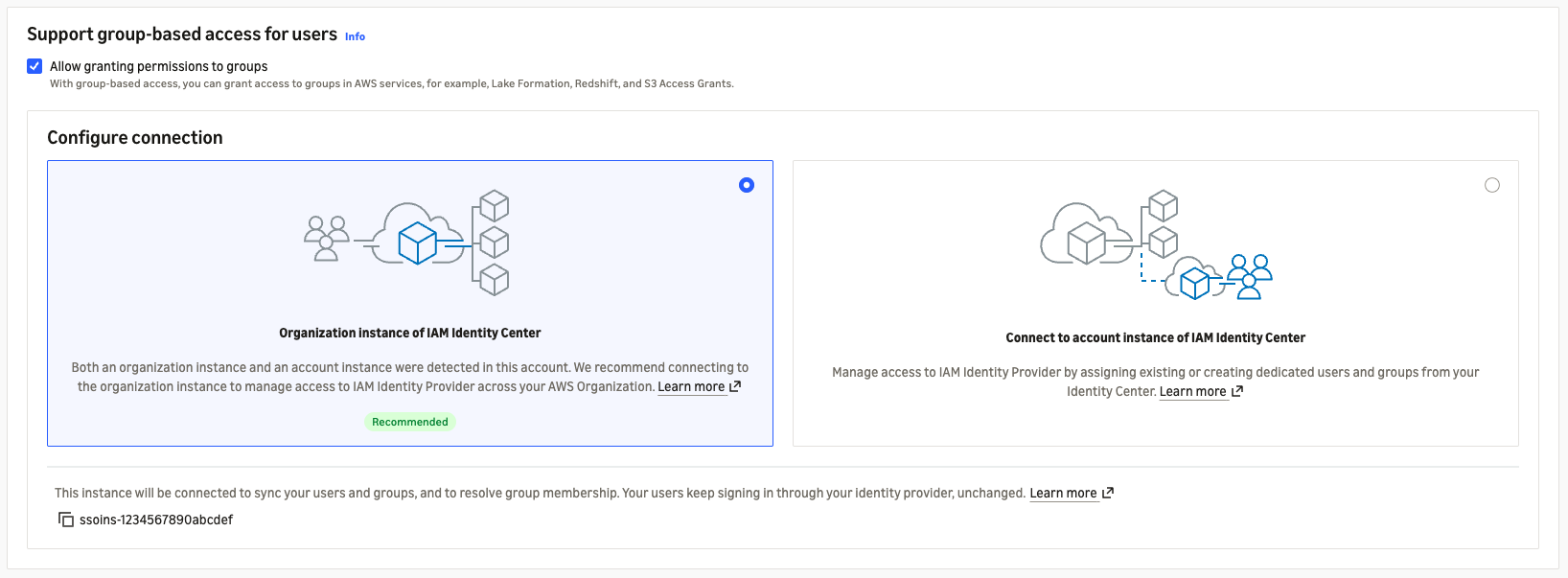
If IAM detects no applicable IAM Identity Center instance, the setup path depends on the AWS account type:
AWS account type |
What IAM does |
What you do |
|---|---|---|
Management account |
Offers inline creation of an organization instance of IAM Identity Center |
Create the organization instance and provision the required users and groups. |
Standalone account |
Offers creation of an account instance |
Create the account instance because no AWS organization is available. |
Eligible member account |
Offers creation of an account instance |
Ask the management account administrator to establish an organization instance. Create an account instance only for an isolated, single-account and single-Region use case. |
Account-instance creation in a member account depends on organization settings, service control policies, existing instances, and Region availability. For details, see Account instances of IAM Identity Center.
Associating or creating an IAM Identity Center instance for group-based access does not change the IAM federation path. Users continue to authenticate through the IAM SAML or OIDC identity provider.
AWS CLI
Use list-instances to list the IAM Identity Center instances created in or visible to the calling account:
aws sso-admin list-instances \
    --query 'Instances[].{InstanceArn:InstanceArn,IdentityStoreId:IdentityStoreId,OwnerAccountId:OwnerAccountId,PrimaryRegion:PrimaryRegion,Status:Status}' \
    --output json
If no IAM Identity Center instance is visible, the command returns:
[]
A visible IAM Identity Center instance produces an entry with this shape:
[
  {
    "InstanceArn": "arn:aws:sso:::instance/<instance-id>",
    "IdentityStoreId": "<identity-store-id>",
    "OwnerAccountId": "<owner-account-id>",
    "PrimaryRegion": "<primary-region>",
    "Status": "ACTIVE"
  }
]
Multiple visible instances produce multiple entries. Use only an instance whose Status is ACTIVE.
AWS SDK for Python (Boto3)
import boto3

sso_admin = boto3.client("sso-admin")
paginator = sso_admin.get_paginator("list_instances")
instances = [
    instance
    for page in paginator.paginate()
    for instance in page["Instances"]
]

print(
    [
        {
            "InstanceArn": item.get("InstanceArn"),
            "IdentityStoreId": item.get("IdentityStoreId"),
            "OwnerAccountId": item.get("OwnerAccountId"),
            "PrimaryRegion": item.get("PrimaryRegion"),
            "Status": item.get("Status"),
        }
        for item in instances
    ]
)
An empty list means that no IAM Identity Center instance is visible. One entry means that one IAM Identity Center instance is available. Multiple entries mean that you must select the applicable Identity Store. Use only an instance whose Status is ACTIVE.
Configure group-based access with an existing IAM Identity Center instance
Use this path when IAM detects an existing organization or account instance.
IAM console
-
Begin the create or update procedure for the IAM identity provider:
-
Under Support group-based access for users, keep Allow granting permissions to groups selected.
-
Review the IAM Identity Center instance selected by IAM. If IAM displays more than one IAM Identity Center instance, select the Identity Store that contains or will receive the required end users and group memberships.

-
Confirm that the selected Identity Store contains the required users and group memberships.
-
If provisioning is needed, use the IAM Identity Center guidance:
-
For the preferred automated path, see Provision users and groups from an external identity provider using SCIM.
-
To manage directory records directly, see IAM Identity Center Identity Store API operations.
-
-
After the required users, groups, and memberships appear in the Identity Store, return to the IAM provider procedure and save the TIP configuration.
After provisioning, follow Verify group-based access to check the directory records and group membership.
AWS CLI or AWS SDK
Associate the selected instance by passing its ARN through the provider-level IdentityCenterInstanceArn request member. Do not place it inside ContextProvider.
Use the protocol page for the complete provider command:
After the provider operation succeeds, retrieve the IAM provider as described in Verify group-based access. IdentityCenterInstanceArn must match the selected instance, and IdentityStoreArn must identify that instance's Identity Store. A missing or different value means that IAM did not save the intended association.
For the preferred automated provisioning path, follow Provision users and groups from an external identity provider using SCIM. To manage directory records directly, use IAM Identity Center Identity Store API operations. Complete provisioning before verifying group-based access.
Create an IAM Identity Center instance and configure group access
Use this path when no applicable IAM Identity Center instance is available. The IAM console offers an inline creation path based on the AWS account type. The AWS CLI and SDK procedures create an account instance for a standalone or eligible member account.
IAM console
-
Keep Allow granting permissions to groups selected.
-
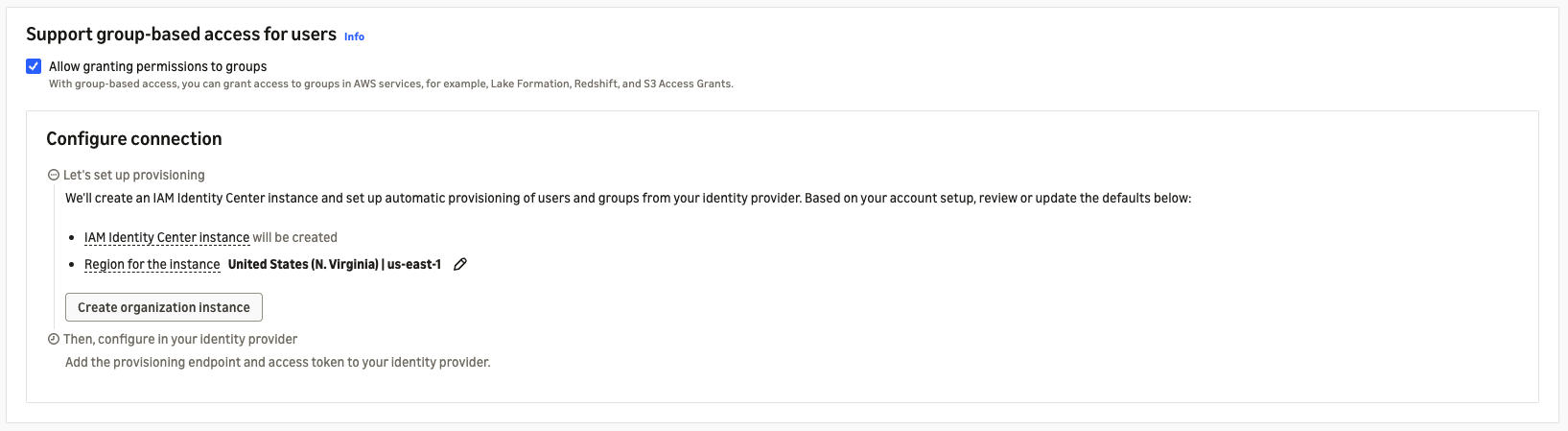
Review the IAM Identity Center instance type available for the AWS account type.
-
Choose the Region where users primarily access the AWS applications that require group-based access. For an account instance, choose the same Region as those applications. For an organization instance, choose the primary Region based on workforce access, data-residency, and operational requirements. You cannot change the primary Region after creation, but you can add Regions later if the organization instance supports multi-Region replication.
-
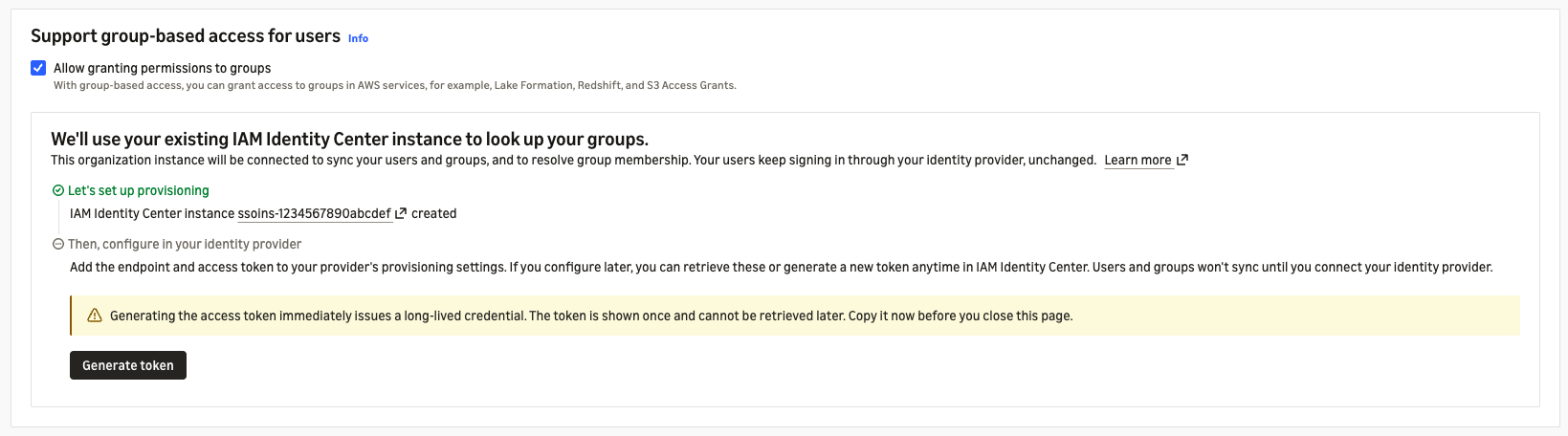
Create the IAM Identity Center instance.
-
Provision the required users and groups by following the IAM Identity Center guidance:
-
For the preferred automated path, see Provision users and groups from an external identity provider using SCIM.
-
To manage directory records directly, see IAM Identity Center Identity Store API operations.
-
-
After the required users, groups, and memberships appear in the Identity Store, return to IAM and save the TIP configuration.
AWS CLI
The following commands use us-east-1 as an example. Replace it with the Region selected by using the preceding guidance.
For a standalone or eligible member account, create an account instance:
aws sso-admin create-instance \
    --name ExampleInstance \
    --region us-east-1 \
    --output json
A successful response contains the new IAM Identity Center instance ARN:
{
  "InstanceArn": "arn:aws:sso:::instance/<instance-id>"
}
Retain InstanceArn from the response and set IDC_INSTANCE_ARN to that value. Check the instance status before associating it:
aws sso-admin describe-instance \
    --instance-arn "$IDC_INSTANCE_ARN" \
    --region us-east-1 \
    --query '{InstanceArn:InstanceArn,IdentityStoreId:IdentityStoreId,Status:Status,StatusReason:StatusReason}' \
    --output json
A ready IAM Identity Center instance returns:
{
  "InstanceArn": "arn:aws:sso:::instance/<instance-id>",
  "IdentityStoreId": "<identity-store-id>",
  "Status": "ACTIVE",
  "StatusReason": null
}
Continue only when Status is ACTIVE. If it is CREATE_IN_PROGRESS, wait and repeat the check. If it is CREATE_FAILED, review StatusReason. CreateInstance does not create an organization instance of IAM Identity Center in the management account.
AWS SDK for Python (Boto3)
The following example uses us-east-1. Replace it with the Region selected by using the preceding guidance.
import boto3

sso_admin = boto3.client("sso-admin", region_name="us-east-1")
response = sso_admin.create_instance(Name="ExampleInstance")
instance_arn = response["InstanceArn"]

instance = sso_admin.describe_instance(InstanceArn=instance_arn)
status = instance["Status"]
print(
    {
        "InstanceArn": instance_arn,
        "IdentityStoreId": instance.get("IdentityStoreId"),
        "Status": status,
        "StatusReason": instance.get("StatusReason"),
    }
)
A ready IAM Identity Center instance returns:
{
  "InstanceArn": "arn:aws:sso:::instance/<instance-id>",
  "IdentityStoreId": "<identity-store-id>",
  "Status": "ACTIVE",
  "StatusReason": null
}
If Status is CREATE_IN_PROGRESS, wait and call DescribeInstance again. If the response is CREATE_FAILED, review StatusReason before retrying.
The documented public CreateInstance response does not include provisioning configuration. After the instance becomes ACTIVE, follow the IAM Identity Center guidance for SCIM provisioning or use IAM Identity Center Identity Store API operations. Complete provisioning before associating the instance and verifying group-based access.
Associate the new IAM Identity Center instance with the IAM identity provider
After the IAM Identity Center instance becomes ACTIVE, use its InstanceArn as the provider-level IdentityCenterInstanceArn when you create or update the IAM identity provider:
-
For SAML, see Create a SAML provider using the AWS CLI or AWS SDK or Add TIP using the AWS CLI or AWS SDK.
-
For OIDC, see Configure TIP for an OIDC provider.
After the provider operation succeeds, retrieve the IAM provider. IdentityCenterInstanceArn must match the InstanceArn created in this section. The identity store ID contained in the provider's IdentityStoreArn must match the IdentityStoreId returned by DescribeInstance. Continue to Verify group-based access.
Verify group-based access
Verify the IAM identity provider association, provisioning state, and Identity Store membership.
IAM console
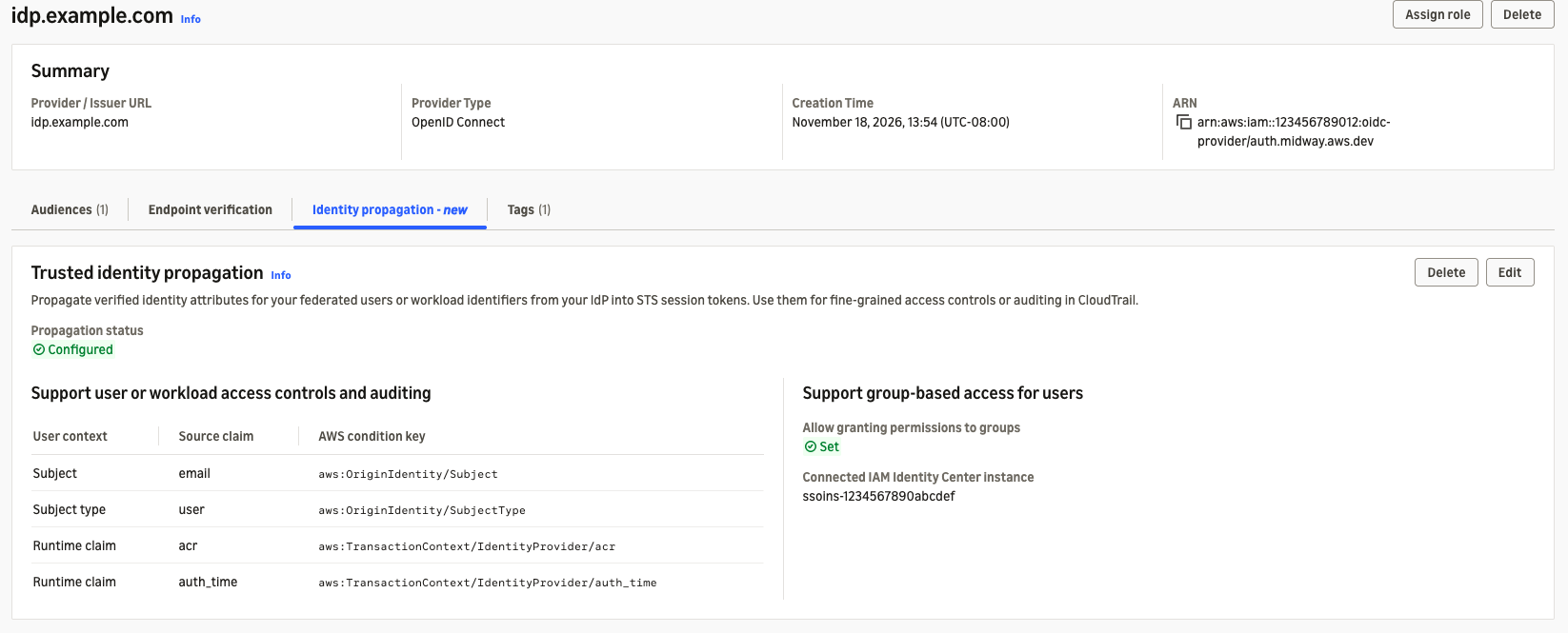
After you save the configuration, verify the IAM provider configuration, IAM Identity Center provisioning, and group membership.
Where to inspect |
Expected result |
If the result is missing or different |
|---|---|---|
IAM console, Identity providers, select the provider, Identity propagation, Propagation status |
Configured |
TIP is not configured for the provider. Choose Configure or Edit, complete the configuration, and save it again. |
IAM console, Identity propagation, Support user or workload access controls and auditing, Subject (unique identifier) |
The source attribute matches the Subject configured for the provider, and the target is |
IAM saved a different Subject mapping. Edit the TIP configuration. An incorrect Subject can prevent IAM Identity Center from resolving the end user. |
IAM console, Identity propagation, Support group-based access for users, Allow granting permissions to groups |
Set |
Group-based access is not configured. Edit the TIP configuration, select Allow granting permissions to groups, and save the change. |
IAM console, Identity propagation, Support group-based access for users, Connected IAM Identity Center instance |
The displayed IAM Identity Center instance is the intended instance. |
IAM saved the wrong association or no association. Edit the TIP configuration and select the intended IAM Identity Center instance. |
Enable automatic provisioning, IAM Identity Center Settings, Automatic provisioning |
Enabled when users and groups are provisioned through SCIM. |
Enable automatic provisioning or correct the SCIM connection. If users and groups are managed directly in IAM Identity Center, skip this check and verify their directory records instead. |
IAM Identity Center console, Users and Groups |
The end user exists, the expected group exists, and the user appears as a member of that group. |
Check the external IdP assignments, attribute mappings, group mappings, and latest synchronization result. The user cannot receive group-based access until the membership appears in IAM Identity Center. |
Example IAM OIDC identity provider with trusted identity propagation and group-based access configured
AWS CLI or AWS SDK
Use GetSAMLProvider or GetOpenIDConnectProvider to retrieve the provider association. A successful response has this shape:
{
  "IdentityCenterInstanceArn": "<the associated IAM Identity Center instance ARN>",
  "IdentityStoreArn": "<the derived Identity Store ARN>"
}
IdentityCenterInstanceArn must match the instance selected in the console or passed in the request. IdentityStoreArn must identify the corresponding Identity Store. A missing, null, or different value means that the saved group-access configuration does not match the intended association.
Use the applicable protocol page for the retrieval command:
Change or remove group-based access
Changing or removing group-based access does not change the IAM identity provider used for sign-in or the saved TIP Subject and runtime-claim mappings.
Change the associated IAM Identity Center instance
The new IAM Identity Center instance must contain or receive the users and group memberships required for group-based access.
IAM console
-
In the IAM console, choose Identity providers, and then select the IAM identity provider.
-
Choose the Identity propagation tab, and then choose Edit.
-
Under Support group-based access for users, keep Allow granting permissions to groups selected.
-
Select the IAM Identity Center instance that contains or will receive the required users and group memberships.
-
Save the configuration.
-
On the Identity propagation tab, inspect Connected IAM Identity Center instance. The displayed instance must be the instance you selected. A missing or different instance means that IAM did not save the intended association.
Do not choose Delete. That action removes the entire TIP configuration from the IAM identity provider.
AWS CLI
For a SAML provider, set SAML_PROVIDER_ARN to the provider ARN and NEW_IDC_INSTANCE_ARN to the new IAM Identity Center instance ARN. Then run:
aws iam update-saml-provider \
    --saml-provider-arn "$SAML_PROVIDER_ARN" \
    --identity-center-instance-arn "$NEW_IDC_INSTANCE_ARN"
For an OIDC provider, set OIDC_PROVIDER_ARN to the provider ARN and run:
aws iam update-open-id-connect-provider \
    --open-id-connect-provider-arn "$OIDC_PROVIDER_ARN" \
    --identity-center-instance-arn "$NEW_IDC_INSTANCE_ARN"
Do not pass ContextProvider or unchanged SAML metadata. IAM updates only the IAM Identity Center association and preserves the existing TIP mapping.
AWS SDK for Python
For a SAML provider:
import boto3

iam = boto3.client("iam")

saml_provider_arn = "arn:aws:iam::123456789012:saml-provider/ExampleProvider"
new_instance_arn = "arn:aws:sso:::instance/ssoins-0123456789abcdef"

iam.update_saml_provider(
    SAMLProviderArn=saml_provider_arn,
    IdentityCenterInstanceArn=new_instance_arn,
)
For an OIDC provider:
import boto3

iam = boto3.client("iam")

oidc_provider_arn = (
    "arn:aws:iam::123456789012:oidc-provider/idp.example.com"
)
new_instance_arn = "arn:aws:sso:::instance/ssoins-0123456789abcdef"

iam.update_open_id_connect_provider(
    OpenIDConnectProviderArn=oidc_provider_arn,
    IdentityCenterInstanceArn=new_instance_arn,
)
Verify the changed association
Retrieve the IAM identity provider as described in Verify group-based access. Inspect IdentityCenterInstanceArn, IdentityStoreArn, and ContextProvider.
-
IdentityCenterInstanceArnmust match the new instance ARN. A missing,null, or different value means that IAM did not save the intended association. -
IdentityStoreArnmust identify the Identity Store for the new instance. A missing,null, or different value means that IAM did not derive the expected Identity Store association. -
ContextProvidermust remain present with the previously saved TIP mapping. A missing or changed value means that the update did not preserve the TIP configuration.
Remove group-based access
Removing group-based access removes only the association between the IAM identity provider and IAM Identity Center. It does not disable TIP or delete the IAM Identity Center instance, automatic-provisioning configuration, users, groups, or group membership information.
IAM console
-
In the IAM console, choose Identity providers, and then select the IAM identity provider.
-
Choose the Identity propagation tab, and then choose Edit.
-
Under Support group-based access for users, clear Allow granting permissions to groups.
-
Save the configuration.
-
On the Identity propagation tab, inspect Propagation status. The expected result is Configured, which confirms that TIP remains configured for user-level access. If the status is Not configured, the entire TIP configuration was deleted rather than only group-based access being removed.
-
Inspect Allow granting permissions to groups. The expected result is Not set. A different value means that group-based access remains configured.
Do not choose Delete. That action removes the entire TIP configuration from the IAM identity provider.
AWS CLI
For a SAML provider:
aws iam update-saml-provider \
    --saml-provider-arn "$SAML_PROVIDER_ARN" \
    --remove-identity-center-instance
For an OIDC provider:
aws iam update-open-id-connect-provider \
    --open-id-connect-provider-arn "$OIDC_PROVIDER_ARN" \
    --remove-identity-center-instance
Do not pass RemoveContextProvider. That option removes the TIP mapping instead of preserving user-level trusted identity propagation.
AWS SDK for Python
For a SAML provider:
import boto3

iam = boto3.client("iam")

saml_provider_arn = "arn:aws:iam::123456789012:saml-provider/ExampleProvider"

iam.update_saml_provider(
    SAMLProviderArn=saml_provider_arn,
    RemoveIdentityCenterInstance=True,
)
For an OIDC provider:
import boto3

iam = boto3.client("iam")

oidc_provider_arn = (
    "arn:aws:iam::123456789012:oidc-provider/idp.example.com"
)

iam.update_open_id_connect_provider(
    OpenIDConnectProviderArn=oidc_provider_arn,
    RemoveIdentityCenterInstance=True,
)
Verify the removed association
Retrieve the IAM identity provider as described in Verify group-based access. Inspect IdentityCenterInstanceArn, IdentityStoreArn, and ContextProvider.
-
IdentityCenterInstanceArnandIdentityStoreArnmust be absent ornull. A returned ARN means that the IAM Identity Center association remains configured. -
ContextProvidermust remain present with the previously saved TIP mapping. A missing or changed value means that user-level TIP was removed or modified instead of only group-based access being removed.