Viewing AWS Security Hub CSPM controls in AWS Trusted Advisor
After you enable AWS Security Hub CSPM for your AWS account, you can view your security controls and their findings in the Trusted Advisor console. You can use Security Hub CSPM controls to identify security vulnerabilities in your account in the same way that you can use Trusted Advisor checks. You can view the check's status, the list of affected resources, and then follow Security Hub CSPM recommendations to address your security issues. You can use this feature to find security recommendations from Trusted Advisor and Security Hub CSPM in one convenient location.
Notes
-
From Trusted Advisor, you can view controls in the AWS Foundational Security Best Practices security standard except for controls that have the Category: Recover > Resilience. For a list of supported controls, see AWS Foundational Security Best Practices controls in the AWS Security Hub CSPM User Guide.
For more information about the Security Hub CSPM categories, see Control categories.
-
Trusted Advisor onboarded Security Hub CSPM controls up to July 20, 2026. Controls released after July 20, 2026 are not yet onboarded to Trusted Advisor. You can find controls released after that date in the Security Hub CSPM log.
Topics
Prerequisites
You must meet the following requirements to enable the Security Hub CSPM integration with Trusted Advisor:
-
You must have a AWS Business Support+, AWS Enterprise Support, or AWS Unified Operations plan for this feature. You can find your support plan from the AWS Support Center
or from the Support plans page. For more information, see Compare AWS Support plans . -
You must enable resource recording in AWS Config for the AWS Regions that you want for your Security Hub CSPM controls. For more information, see Enabling and configuring AWS Config.
-
You must enable Security Hub CSPM and select the AWS Foundational Security Best Practices v1.0.0 security standard. If you haven't done so already, see Setting up AWS Security Hub CSPM in the AWS Security Hub CSPM User Guide.
Note
If you already completed these prerequisites, you can skip to View your Security Hub CSPM findings.
About AWS Organizations accounts
If you already completed the prerequisites for a management account, this integration is enabled automatically for all member accounts in your organization. Individual member accounts don't need to contact Support to enable this feature. However, member accounts in your organization must enable Security Hub CSPM if they want to see their findings in Trusted Advisor.
If you want to disable this integration for a specific member account, see Disable this feature for AWS Organizations accounts.
View your Security Hub CSPM findings
After you enable Security Hub CSPM for your account, it can take up to 24 hours for your Security Hub CSPM findings to appear in the Security page of the Trusted Advisor console.
To view your Security Hub CSPM findings in Trusted Advisor
-
Navigate to the Trusted Advisor console
, and then choose the Security category. -
In the Search by keyword field, enter the control name or description in the field.
Tip
For Source, you can choose AWS Security Hub CSPM to filter for Security Hub CSPM controls.
-
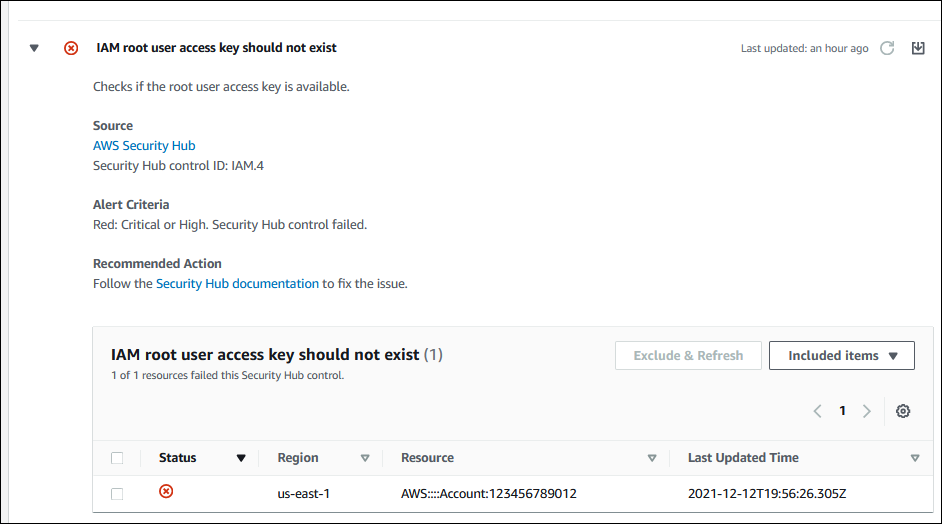
Choose the Security Hub CSPM control name to view the following information:
-
Description – Describes how this control checks your account for security vulnerabilities.
-
Source – Whether the check comes from AWS Trusted Advisor or AWS Security Hub CSPM. For Security Hub CSPM controls, you can find the control ID.
-
Alert Criteria – The status of the control. For example, if Security Hub CSPM detects an important issue, the status might be Red: Critical or High.
-
Recommended Action – Use the Security Hub CSPM documentation link to find the recommended steps to fix the issue.
-
Security Hub CSPM resources – You can find the resources in your account where Security Hub CSPM has detected an issue.
-
Notes
-
Results for these checks are automatically refreshed at least once daily, and refresh requests are not allowed. It might take a few hours for changes to appear. You can use the Trusted Advisor console to exclude resources from checks that automatically refresh. You can use the BatchUpdateRecommendationResourceExclusion API to exclude resources from any check except Trusted Advisor Priority recommendation resources.
-
The organizational view feature supports this integration with Security Hub CSPM. You can view your findings for your Security Hub CSPM controls across your organization, and then create and download reports. For more information, see Organizational view for AWS Trusted Advisor.
Example : Security Hub CSPM control for IAM user access key should not exist
The following is an example finding for a Security Hub CSPM control in the Trusted Advisor console.
Refresh your Security Hub CSPM findings
After you enable a security standard, it can take up to two hours for Security Hub CSPM to have findings for your resources. It can then take up to 24 hours for that data to appear in the Trusted Advisor console. If you recently enabled the AWS Foundational Security Best Practices v1.0.0 security standard, check the Trusted Advisor console again later.
Note
-
The refresh schedule for each Security Hub CSPM control is periodic or change triggered. Currently, you can't use the Trusted Advisor console or the AWS Support API to refresh your Security Hub CSPM controls. For more information, see Schedule for running security checks.
-
Results for these checks are automatically refreshed at least once daily, and refresh requests are not allowed. It might take a few hours for changes to appear. You can use the Trusted Advisor console to exclude resources from checks that automatically refresh. You can use the BatchUpdateRecommendationResourceExclusion API to exclude resources from any check except Trusted Advisor Priority recommendation resources.
Disable Security Hub CSPM from Trusted Advisor
Follow this procedure if you don't want your Security Hub CSPM information to appear in the Trusted Advisor console. This procedure only disables the Security Hub CSPM integration with Trusted Advisor. It won't affect your configurations with Security Hub CSPM. You can continue to use the Security Hub CSPM console to view your security controls, resources, and recommendations.
To disable the Security Hub CSPM integration
-
Contact AWS Support
and request to disable the Security Hub CSPM integration with Trusted Advisor. After AWS Support disables this feature, Security Hub CSPM no longer sends data to Trusted Advisor. Your Security Hub CSPM data will be removed from Trusted Advisor.
-
If you want to enable this integration again, contact AWS Support
.
Disable this feature for AWS Organizations accounts
If you already completed the previous procedure for a management account, Security Hub CSPM integration is automatically removed from all member accounts in your organization. Individual member accounts in your organization don't need to contact AWS Support separately.
If you're a member account in an organization, you can contact Support to remove this feature from only your account.
Troubleshooting
If you're having issues with this integration, see the following troubleshooting information.
Contents
I don't see Security Hub CSPM findings in the Trusted Advisor console
I configured Security Hub CSPM and AWS Config correctly, but my findings are still missing
I want to enable or disable this feature for a member account that belongs to an AWS organization
I see multiple AWS Regions for the same affected resource for a Security Hub CSPM check
My control is archived in Security Hub CSPM, but I still see the findings in Trusted Advisor
I don't see Security Hub CSPM findings in the Trusted Advisor console
Verify that you completed the following steps:
-
You have a AWS Business Support+, AWS Enterprise Support, or AWS Unified Operations plan.
-
You enabled resource recording in AWS Config within the same Region as Security Hub CSPM.
-
You enabled Security Hub CSPM and selected the AWS Foundational Security Best Practices v1.0.0 security standard.
-
New controls from Security Hub CSPM are added as checks in Trusted Advisor within two to four weeks. See the note.
For more information, see the Prerequisites.
I configured Security Hub CSPM and AWS Config correctly, but my findings are still missing
It can take up to two hours for Security Hub CSPM to have findings for your resources. It can then take up to 24 hours for that data to appear in the Trusted Advisor console. Check the Trusted Advisor console again later.
Notes
-
Only your findings for controls in the AWS Foundational Security Best Practices security standard will appear in Trusted Advisor except for controls that have the Category: Recover > Resilience.
-
If there's a service issue with Security Hub CSPM or Security Hub CSPM isn't available, it can take up to 24 hours for your findings to appear in Trusted Advisor. Check the Trusted Advisor console again later.
I want to disable specific Security Hub CSPM controls
Security Hub CSPM sends your data to Trusted Advisor automatically. If you disable a Security Hub CSPM control or no longer have resources for that control, your findings won't appear in Trusted Advisor.
You can sign in to the Security Hub CSPM
console
If you disable a Security Hub CSPM control or disable all controls for the AWS Foundational Security Best Practices security standard, your findings are archived within the next five days. This five-day period to archive is approximate and best effort only, and isn't guaranteed. When your findings are archived, they are removed from Trusted Advisor.
For more information, see the following topics:
I want to find my excluded Security Hub CSPM resources
From the Trusted Advisor console, you can choose your Security Hub CSPM control name, and then choose the Excluded items option. This option displays all resources that are suppressed in Security Hub CSPM.
If the workflow status for a resource is set to SUPPRESSED, then that
resource is an excluded item in Trusted Advisor. You can't suppress Security Hub CSPM resources from
the Trusted Advisor console. To do so, use the Security Hub CSPM console
I want to enable or disable this feature for a member account that belongs to an AWS organization
By default, member accounts inherit the feature from the management account for
AWS Organizations. If the management account has enabled the feature, then all accounts in the
organization will also have the feature. If you have a member account and want to
make specific changes for your account, you must contact AWS Support
I see multiple AWS Regions for the same affected resource for a Security Hub CSPM check
Some AWS services are global and aren't specific to a Region, such as IAM and Amazon CloudFront. By default, global resources such as Amazon S3 buckets appear in the US East (N. Virginia) Region.
For Security Hub CSPM checks that evaluate resources for global services, you might see more
than one item for affected resources. For example, if the Hardware MFA should
be enabled for the root user check identifies that your account hasn't
activated this feature, then you will see multiple Regions in the table for the same
resource.
You can configure Security Hub CSPM and AWS Config so that multiple Regions won't appear for the same resource. For more information, see AWS Foundational Best Practices controls that you might want to disable.
I turned off Security Hub CSPM or AWS Config in a Region
If you stop resource recording with AWS Config or disable Security Hub CSPM in an AWS Region, Trusted Advisor no longer receives data for any controls in that Region. Trusted Advisor removes your Security Hub CSPM findings within 7-9 days. This time frame is best effort and isn't guaranteed. For more information, see Disabling Security Hub CSPM.
To disable this feature for your account, see Disable Security Hub CSPM from Trusted Advisor.
My control is archived in Security Hub CSPM, but I still see the findings in Trusted Advisor
When the RecordState status changes to ARCHIVED for a
finding, Trusted Advisor deletes the finding for that Security Hub CSPM control from your account. You
might still see the finding in Trusted Advisor for up to 7-9 days before it's deleted.
This time frame is best effort and isn't guaranteed.
I still can't view my Security Hub CSPM findings
If you still have issues with this feature, you can create a technical support
case in the AWS Support
Center