Email and chatbot notifications for AWS Marketplace events
Update your email filters
When you opt in to managed notifications, AWS Marketplace email is sent from marketplace@aws.com instead of no-reply@marketplace.aws. If you filter, forward, or allowlist AWS Marketplace email, update your rules to allow marketplace@aws.com so you don't miss notifications. All accounts are enrolled in the new experience automatically by January 2027.
Default email notifications
As a buyer in AWS Marketplace, you automatically receive email notifications when the following events occur:
You accept an offer
A seller publishes a private offer set to your account
A seller publishes a new private offer related to a private offer you accepted previously
A seller publishes an update to a previously accepted offer
An agreement is expiring, sent 180, 120, 90, 60, and 30 days before the agreement end date (contract model). For an auto-renewing agreement, the notification includes the auto-renewal status
A seller submits an agreement cancellation request for your review
An agreement cancellation request is approved (or auto-approved), denied, or withdrawn
A billing adjustment (refund) is processed for one of your agreements
For agreements created from a private offer with auto-renewal terms, you automatically receive the following email notifications.
| Email notification | When it's sent | What it includes |
|---|---|---|
| Agreement expiring (update to the existing expiry email) | 180, 120, 90, 60, and 30 days before the agreement end date (contract-model agreements). | Seller, product, offer, and agreement details, plus the auto-renewal status. For an auto-renewing agreement, states that it will renew automatically on the end date unless you opt out before the renewal decision deadline. If you or the seller have opted out, the email states that instead. |
| Agreement amended | When the agreement is amended, including when you opt in or out of auto-renewal or the seller opts out. | Agreement details and the resulting auto-renewal state (for example, will auto-renew unless you opt out before the renewal decision deadline; the seller opted out; or you opted out). |
| Renewal terms confirmed | After the seller's adjustment deadline passes, for percentage-range pricing (when the seller finalizes the uplift or the default uplift is applied). | Product and agreement details, the renewal total contract value (TCV), and the date by which you can still turn off auto-renewal. |
| Renewal upcoming | When the renewal decision deadline is reached and the renewal is confirmed to proceed. | Product and agreement details and the renewal TCV. States that auto-renewal can no longer be turned off once the opt-out period has ended. |
| Agreement renewed | When the renewal completes and a new agreement is created. | The new agreement ID, start and end dates, and purchase amount, plus a note that it replaces the previous agreement. If the original agreement had a purchase order, a reminder to map a PO to the new agreement. |
For more information about auto-renewal, see Auto-renewal for private offers.
These notifications are sent to your account's root user email address. They are moving to AWS User Notifications—opt in to start receiving them from marketplace@aws.com and to add more recipients and delivery channels.
Note
If you are missing AWS Marketplace emails, check your spam folder or adjust email settings. When you opt in to managed notifications, email is sent from marketplace@aws.com, otherwise it is sent from no-reply@marketplace.aws. Add the sending address to your allowed senders. Providers such as Google and Yahoo may filter these—see Prevent valid emails from going to Spam (Google)
Managed notifications (recommended)
AWS Marketplace buyer notifications are delivered through AWS User Notifications managed notifications. Opt in to:
View notifications in the console notification center
Receive them by email (your root user address plus additional addresses you add), in the AWS Console Mobile Application, and in Amazon Q Developer in chat applications
Subscribe by category—Products and Solutions, Agreements and Subscriptions, Private Offers, and Pricing Changes
Notifications are sent from marketplace@aws.com.
Opt in and add delivery channels
To opt in to managed notifications and choose how you receive them:
Open the Managed notifications
page in the AWS User Notifications console. You can also open the AWS Marketplace Notifications page in the console and choose AWS managed notifications subscriptions. AWS Marketplace notifications are grouped by category: Products and Solutions, Agreements and Subscriptions, Private Offers, and Pricing Changes. For each category you want to receive, choose the account contacts that are notified.
Add delivery channels. By default, notifications are sent to your account's root user email address. You can add more email addresses, Amazon Q Developer in chat applications (such as Slack and Microsoft Teams), and the AWS Console Mobile Application.
For detailed steps, see AWS managed notification subscriptions in the AWS User Notifications User Guide.
Create a custom notification configuration (optional)
Beyond the preceding category subscriptions, you can build your own notification configuration in AWS User Notifications to route a specific event to specific recipients. For example, to notify your procurement team when agreements are expiring:
Open the AWS User Notifications console at https://console.aws.amazon.com/notifications/
. Find the Notification Configurations section.
Choose Create notification configuration.
Add a name and description.
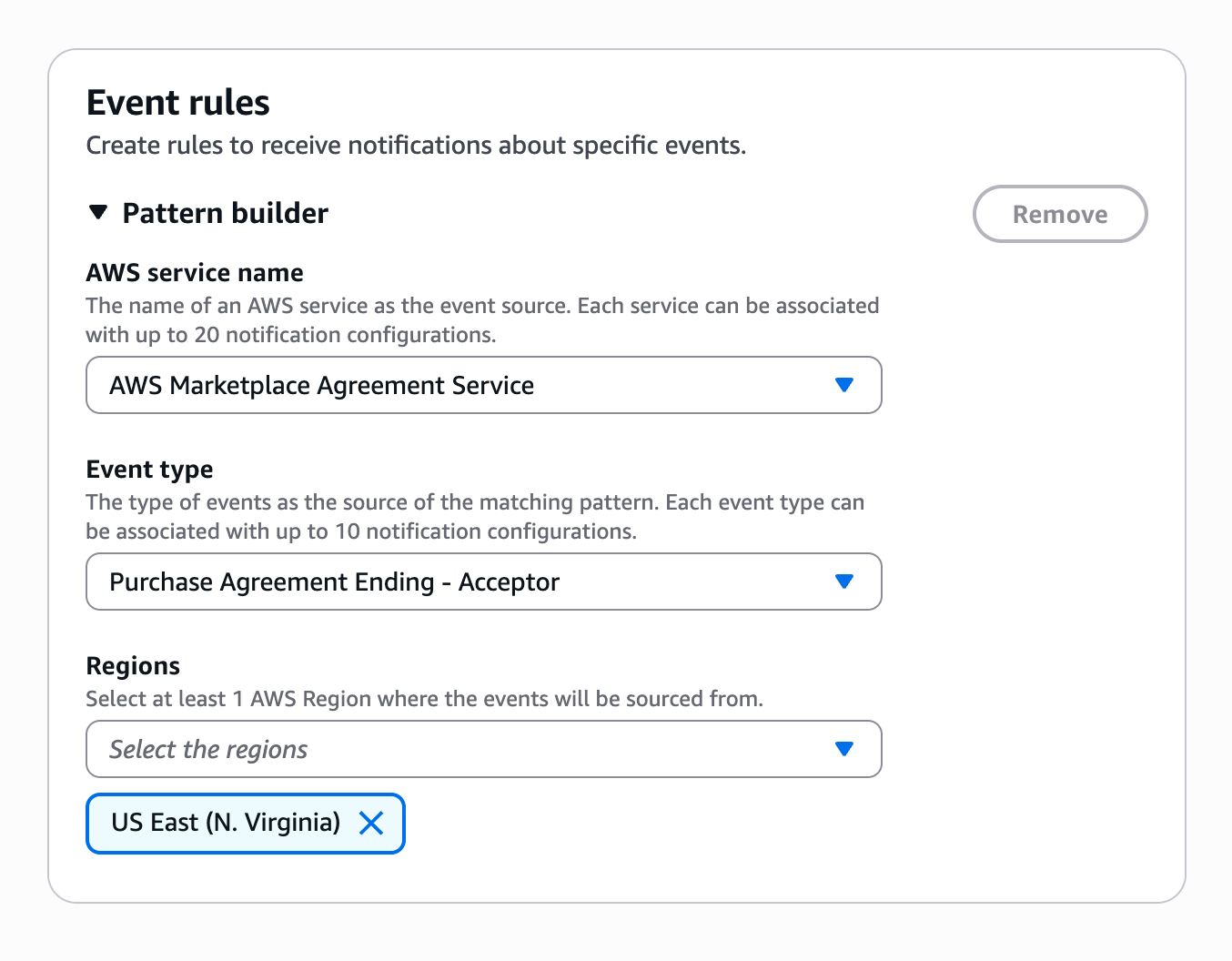
Create an Event Rule:
Choose AWS Marketplace Agreement Service as the service name
For event type, choose Purchase Agreement Ending - Acceptor
For the region, select the AWS Regions where your service data is located
Add delivery channels:
Choose email as your delivery channel
Enter your procurement team's distribution list email like
procurement@acme.orgSave the notification configuration
Note
In order to verify the email address, make sure that a user with access to the AWS console is part of the distribution list. From there, you may add and remove emails to the list without having to verify again.
Legacy email notifications (being retired)
Previously, AWS Marketplace sent buyer email from no-reply@marketplace.aws to your root user email address only. This experience is being retired—all accounts move to managed notifications by January 2027. To avoid interruption, opt in to managed notifications and update any email rules to allow marketplace@aws.com.
Learn More
For more information on AWS User Notifications, see the following topics: